Introduction:
Visual Studio 2019 streamlines your experience so you can get right down to focused work. Microsoft announced Visual studio 2019 will launch on April 2, 2019 with many attractive features. Initially preview version not supported Bot template. Microsoft released update Bot Template with VS 2019 support on Feb 13, in this article, we will learn how to create a bot by using Visual Studio 2019 with Microsoft Bot Framework template, and will be testing it with the Bot Emulator version 4.2.1.
The Bot Framework enables you to build bots that support different types of interactions with users. You can design conversations in your bot to be free. Your bot can also have more guided interactions where it provides the users choices or actions. The conversation can use simple text strings or more complex rich cards that contain text, images, and action buttons. And, you can add natural language interactions, which let your users interact with your bots in a natural and expressive way.
Download the Bot Framework V4 Emulator for your platform from the GitHub releases page.
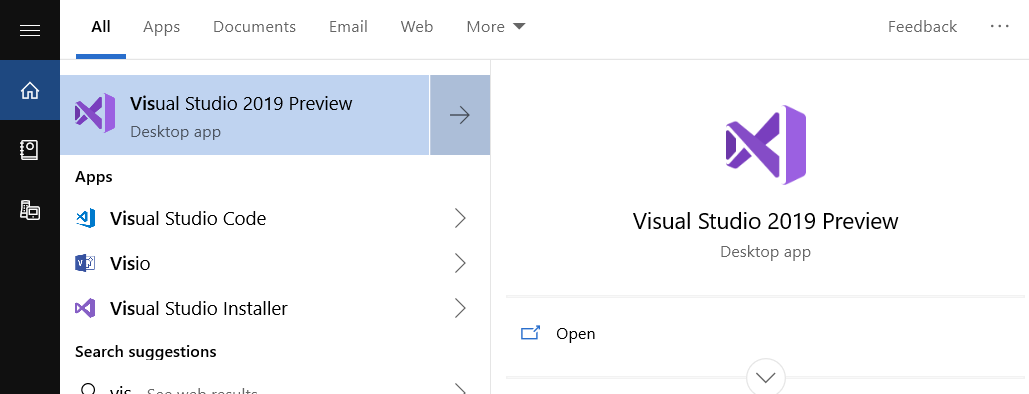
Before create a new project, Install the Bot Builder template from Tools >Extensions and Updates and search Bot Build V4 SDK > click on Install
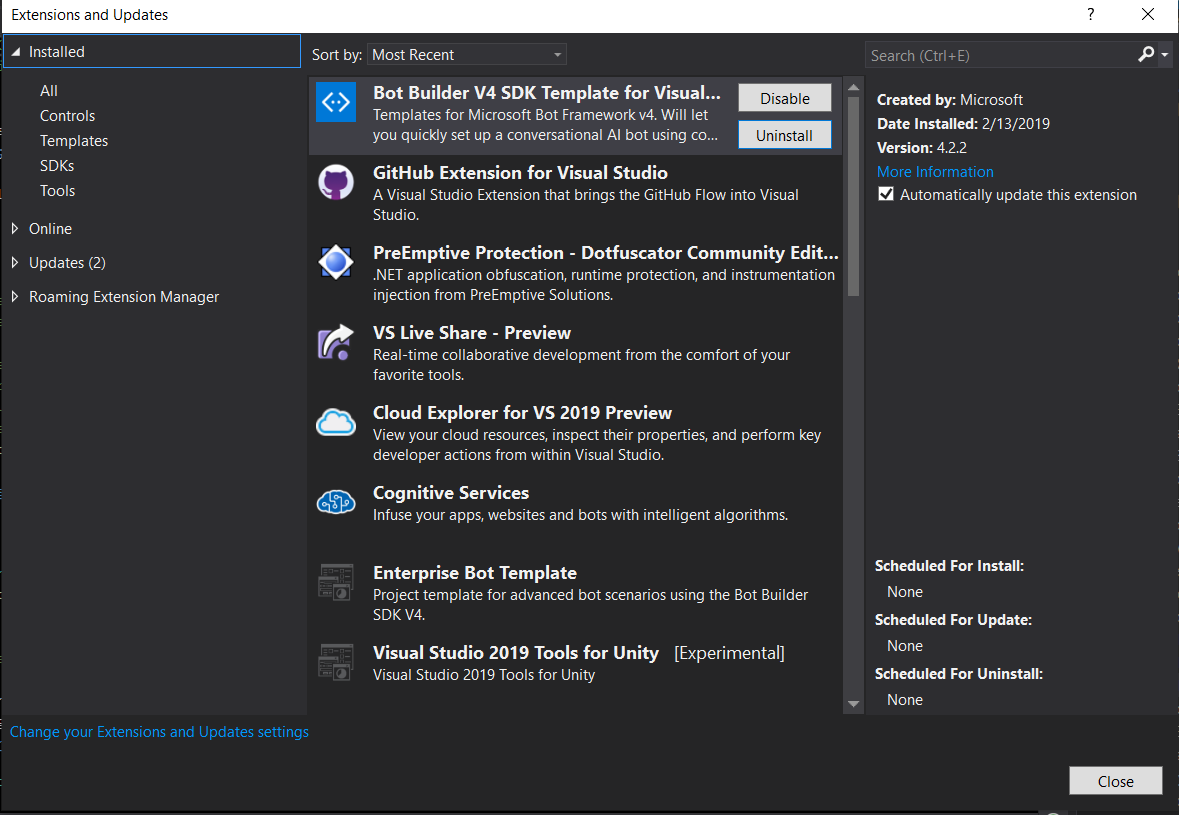
Create new bot application project or open the recent project, as like below
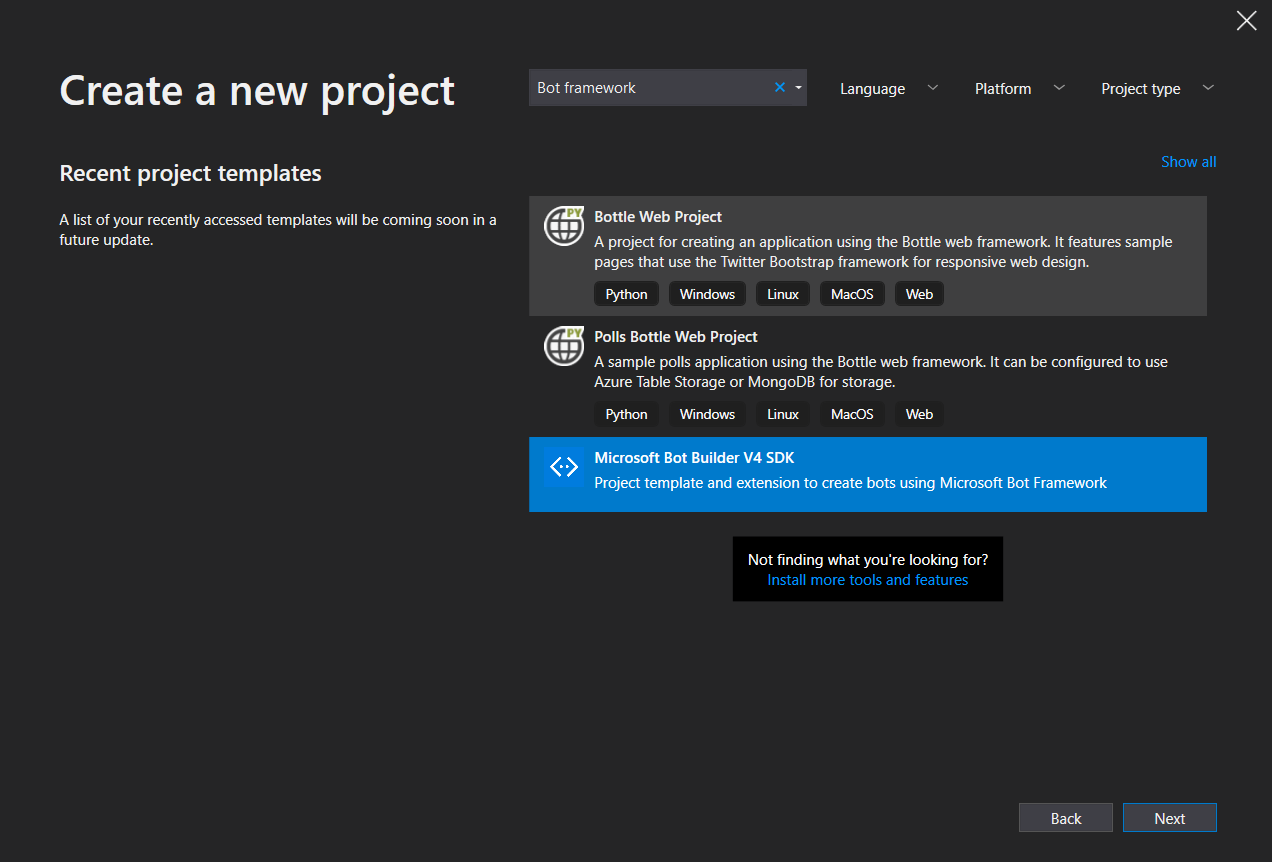
Provide project name and location in the following screen and click on create
After click on create button, the solutions will create with Core, Empty and echo bot. You can select the required project version and select another project and delete

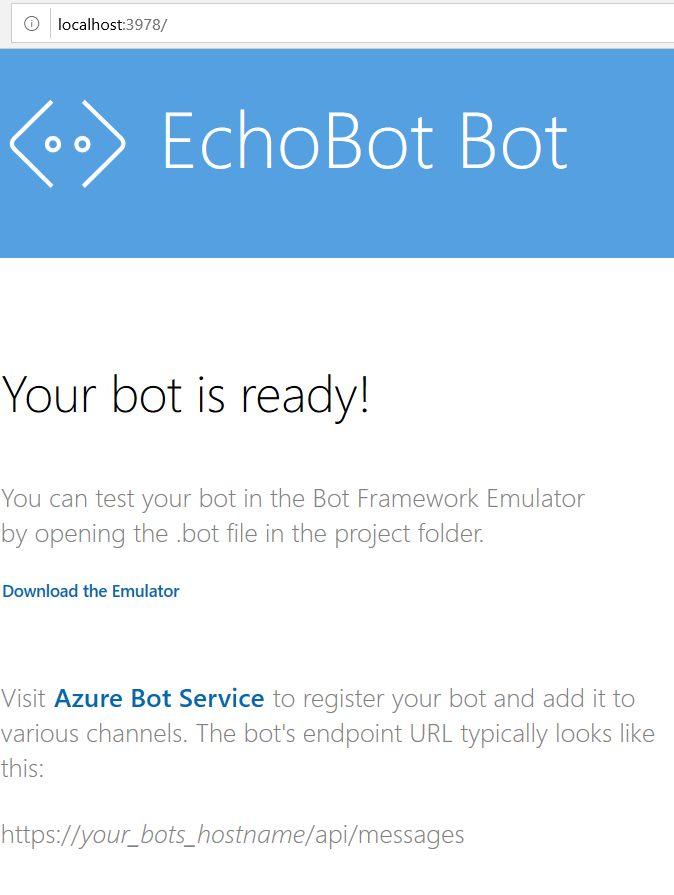
Check the port that your web application, if it is not running on port 3978 you'll need to update the Bot configuration. In order to update this setting, go to Visual Studio Project and open the EchoBot.bot file. Update the endpoint setting to match the port that your app is using.
public async Task OnTurnAsync(ITurnContext turnContext, CancellationToken cancellationToken = default(CancellationToken))
{
// Handle Message activity type, which is the main activity type for shown within a conversational interface
// Message activities may contain text, speech, interactive cards, and binary or unknown attachments.
// see https://aka.ms/about-bot-activity-message to learn more about the message and other activity types
if (turnContext.Activity.Type == ActivityTypes.Message)
{
// Get the conversation state from the turn context.
var state = await _accessors.CounterState.GetAsync(turnContext, () => new CounterState());
// Bump the turn count for this conversation.
state.TurnCount++;
// Set the property using the accessor.
await _accessors.CounterState.SetAsync(turnContext, state);
// Save the new turn count into the conversation state.
await _accessors.ConversationState.SaveChangesAsync(turnContext);
// Echo back to the user whatever they typed.
var responseMessage = $"Turn {state.TurnCount}: You sent '{turnContext.Activity.Text}'\n";
await turnContext.SendActivityAsync(responseMessage);
}
else
{
await turnContext.SendActivityAsync($"{turnContext.Activity.Type} event detected");
}
}
Prerequisites:
Download Visual Studio 2019 Preview ++Download the Bot Framework V4 Emulator for your platform from the GitHub releases page.
Create New Project:
Let's start with creating a new Bot application using Visual Studio 2019. Go to Windows >> Visual Studio 2019.Before create a new project, Install the Bot Builder template from Tools >Extensions and Updates and search Bot Build V4 SDK > click on Install
Create new bot application project or open the recent project, as like below
Provide project name and location in the following screen and click on create
After click on create button, the solutions will create with Core, Empty and echo bot. You can select the required project version and select another project and delete
Empty Project :
A good template if you are familiar with Bot Framework v4, and simple want a basic skeleton project. Also a good option if you want to take sample code from the documentation and paste it into a minimal bot in order to learn.Core Project :
Our most advanced template, the Core Bot template provides 6 core features every bot is likely to have. This template covers the core features of a Conversational-AI bot using LUIS. See the Core Bot Features table below for more details.Echo Project :
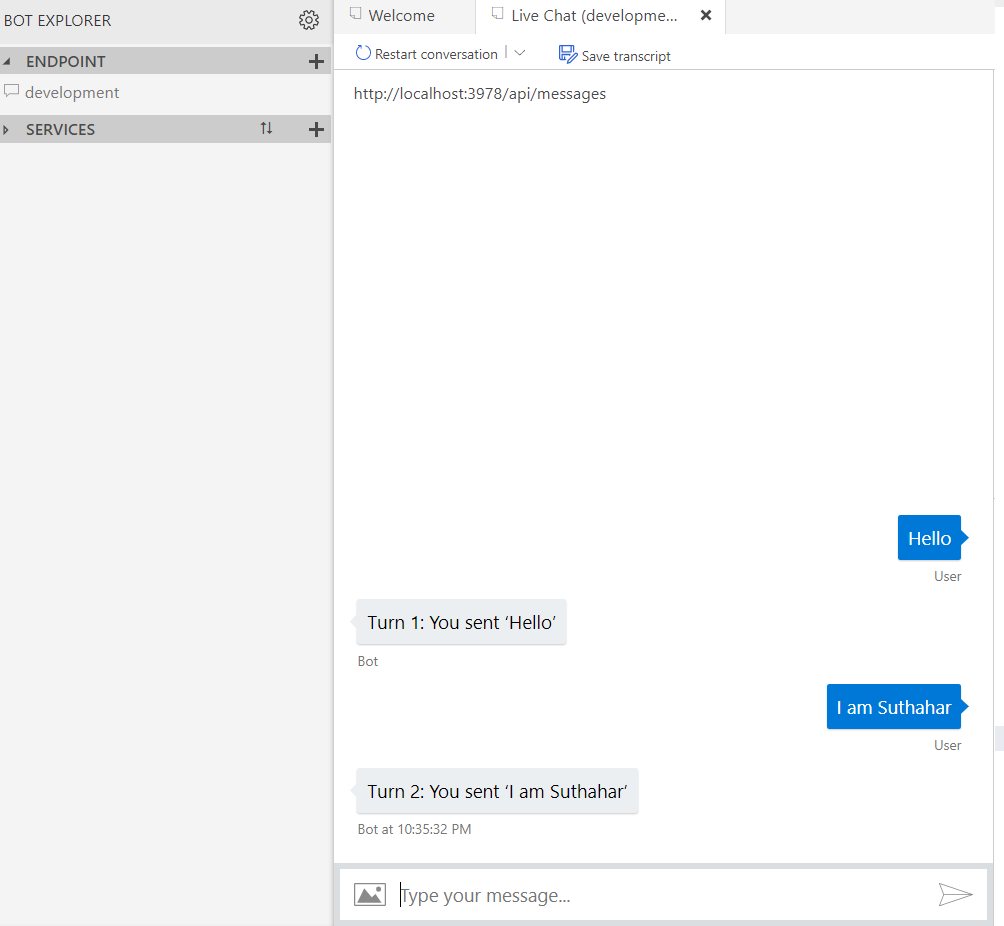
A good template if you want a little more than "Hello World!", but not much more. This template handles the very basics of sending messages to a bot, and having the bot process the messages by repeating them back to the user. This template produces a bot that simply "echos" back to the user anything the user says to the bot.Run the application:
Run the app by clicking on the IIS Express button in Visual Studio (with the green play icon).Check the port that your web application, if it is not running on port 3978 you'll need to update the Bot configuration. In order to update this setting, go to Visual Studio Project and open the EchoBot.bot file. Update the endpoint setting to match the port that your app is using.
Edit OnTurnAsync method:
Open EchoBotBot.cs and add the required namespace and modify the OnTurnAsync method, replace the content of the else statement with the following code snippetpublic async Task OnTurnAsync(ITurnContext turnContext, CancellationToken cancellationToken = default(CancellationToken))
{
// Handle Message activity type, which is the main activity type for shown within a conversational interface
// Message activities may contain text, speech, interactive cards, and binary or unknown attachments.
// see https://aka.ms/about-bot-activity-message to learn more about the message and other activity types
if (turnContext.Activity.Type == ActivityTypes.Message)
{
// Get the conversation state from the turn context.
var state = await _accessors.CounterState.GetAsync(turnContext, () => new CounterState());
// Bump the turn count for this conversation.
state.TurnCount++;
// Set the property using the accessor.
await _accessors.CounterState.SetAsync(turnContext, state);
// Save the new turn count into the conversation state.
await _accessors.ConversationState.SaveChangesAsync(turnContext);
// Echo back to the user whatever they typed.
var responseMessage = $"Turn {state.TurnCount}: You sent '{turnContext.Activity.Text}'\n";
await turnContext.SendActivityAsync(responseMessage);
}
else
{
await turnContext.SendActivityAsync($"{turnContext.Activity.Type} event detected");
}
}
Test Bot Applications:
Open the Bot Framework Emulator from the Start Menu and Click Open Bot and select the file EchoBot.bot from project. Previously we had to provide the bot endpoint to the emulator but now it can read all the configuration from a .bot file.
well! Thanks for providing a good stuff
ReplyDeleteMicrosoft Azure DevOps Online Training
Microsoft Azure DevOps training hyderabad
Azure DevOps online training in hyderabad
Thank you for your post. This is an excellent information. It was amazing and wonderful to visit your blog.
ReplyDeleteazure devops training in ameerpet
azure devops online training
Azure devops training