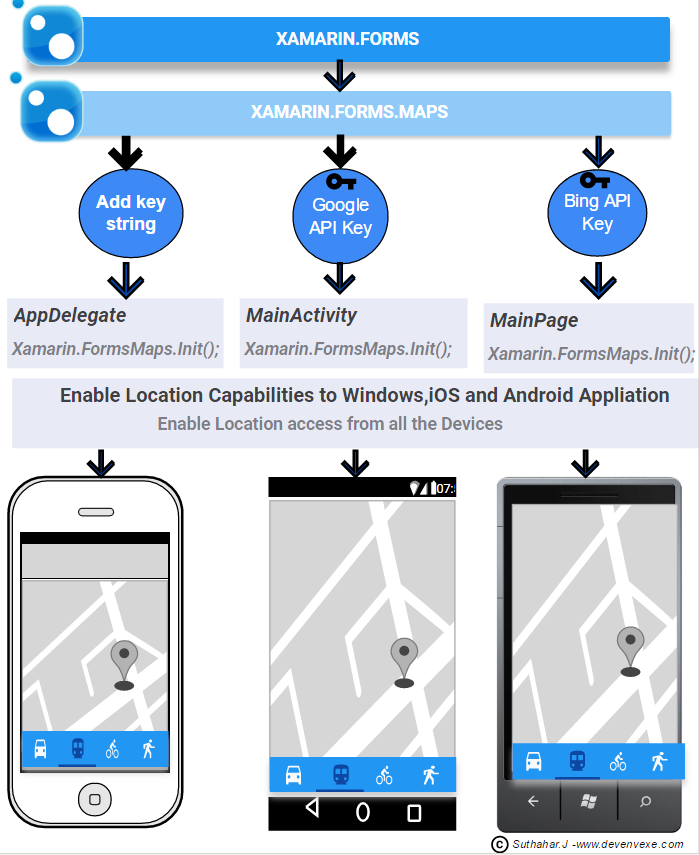
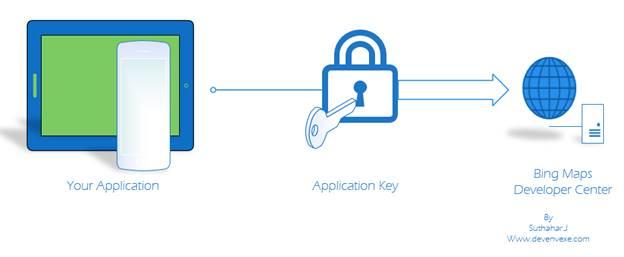
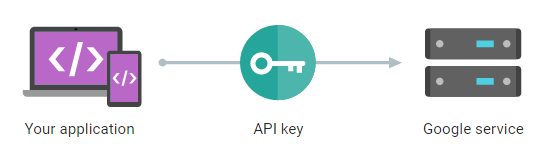
Xamarin allows us to integrate maps in our all the platform mobile application. Google and Bing maps combines the power of Xamarin maps. You can show any location on the map, show different routes on the map e.t.c. You can refer below image for quickly learn about map implementation using xamarin.forms .In this Article ,I have shared very detail about xamarin forms maps implementation .


Download Source Code :


Step 1: 

Setup new Xamarin.Forms Application:

Let's start with creating a new Xamarin Forms Project in Visual Studio.
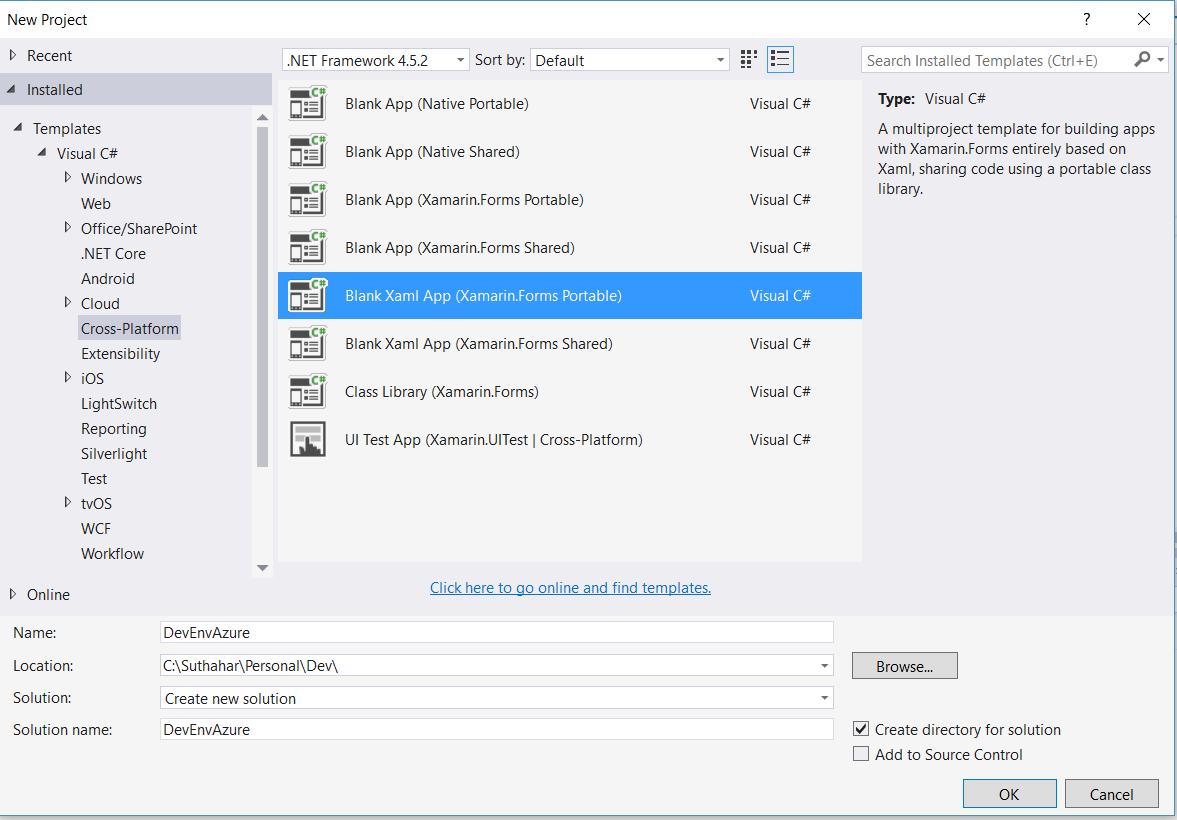
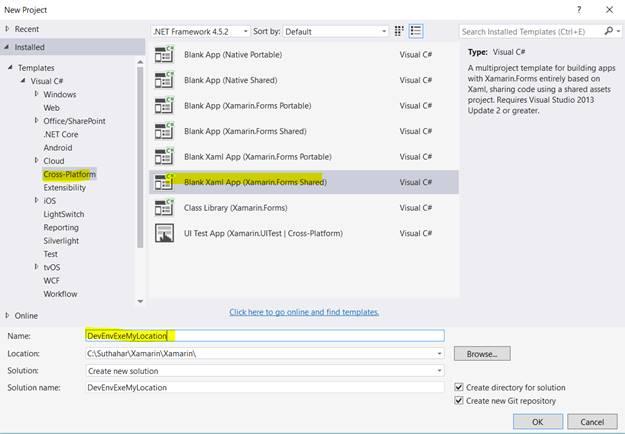
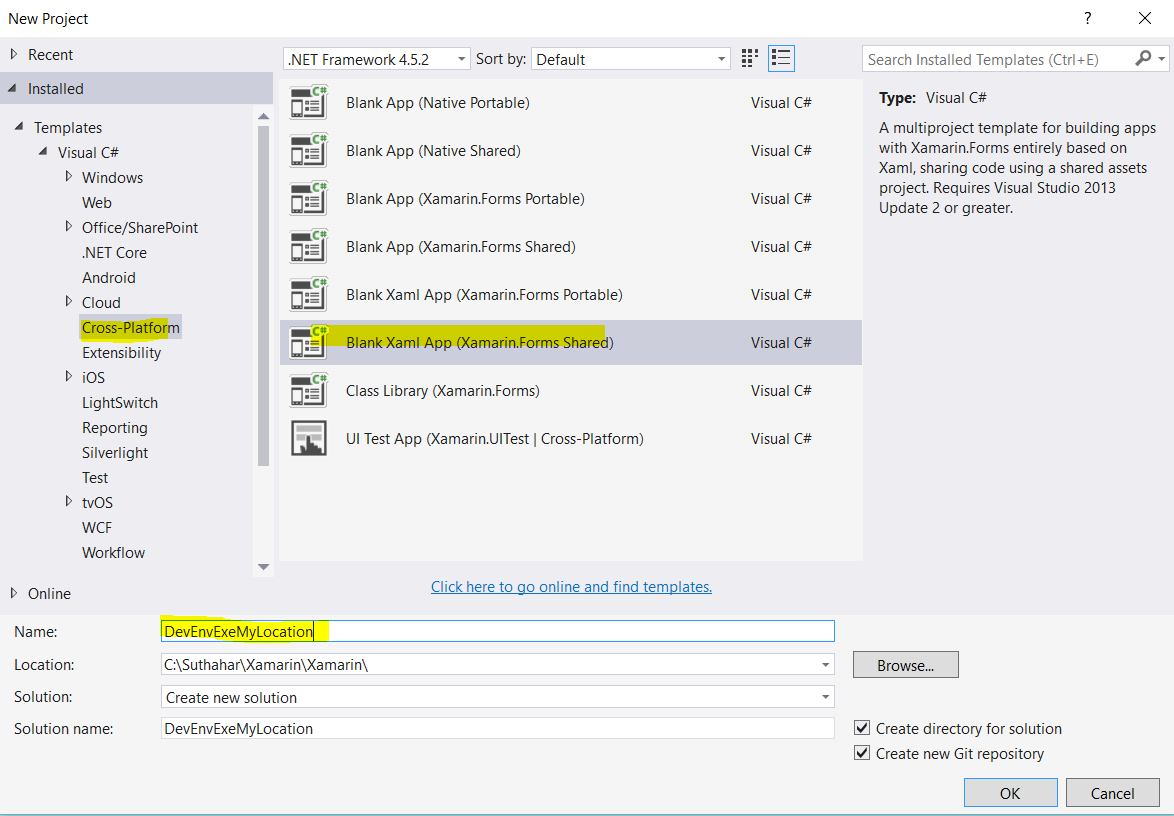
Open Run > Type Devenev.Exe and enter > New Project (Ctrl+Shift+N) - select Portable Blank Xaml App


It will automatically create multiple projects like Portable, Android, iOS, UWP. You can refer to my previous article for more.

How to Create Your First Xamarin.Form Application - http://www.c-sharpcorner.com/article/how-to-create-first-xamarin-form-application/

Note:

UWP is available in Xamarin.Forms 2.1 and above, and Xamarin.Forms.Maps is supported in Xamarin.Forms 2.2 and above so make sure update xamarin Forms nuget package

Step 2: 

Install Xamarin.Forms.Maps nuget Package:

Xamarin.Forms.Maps is a cross-platform nuget package for native map APIs on each platform. Map control android will support google map ,windows and UWP apps will support bing map .

Right Click on Solution > Select “Manage nuget package for project solution “ > Select Xamain.Forms.Maps > Select all the Project > Click on Install


Step 3: Add Maps control in Portable library:

You can design common xaml design to all the platform from portal library.
Add Xamarin.Forms.Maps namespace from MainPage.xaml

xmlns:maps="clr-namespace:Xamarin.Forms.Maps;assembly=Xamarin.Forms.Maps"

Add customized UI map UI Design like below and if you want show user current add IsShowingUser="True" property from map control.

<?xml version="1.0" encoding="utf-8" ?>
<ContentPage xmlns="http://xamarin.com/schemas/2014/forms"
xmlns:x="http://schemas.microsoft.com/winfx/2009/xaml"
xmlns:local="clr-namespace:DevEnvExeMyLocation"
xmlns:maps="clr-namespace:Xamarin.Forms.Maps;assembly=Xamarin.Forms.Maps"
x:Class="DevEnvExeMyLocation.MainPage">
<StackLayout VerticalOptions="StartAndExpand" Padding="30">
<maps:Map WidthRequest="960" HeightRequest="700"
x:Name="MyMap"
IsShowingUser="True"
MapType="Street"/>
</StackLayout>
</ContentPage>

You can add following code for Zoom and center the user position from MainPage.cs file

using Xamarin.Forms;
using Xamarin.Forms.Maps;

namespace DevEnvExeMyLocation
{
public partial class MainPage : ContentPage
{
public MainPage()
{
InitializeComponent();
MyMap.MoveToRegion(
MapSpan.FromCenterAndRadius(
new Position(37, -122), Distance.FromMiles(1)));
}
}
}

Step 4: Generate Google map API Key

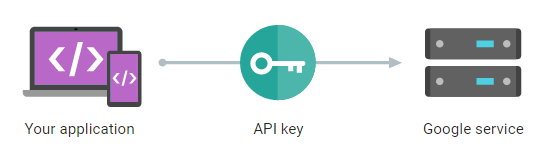
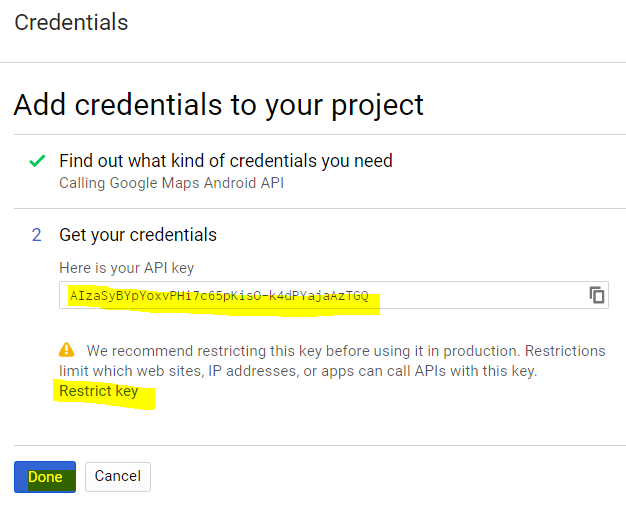
Android allows us to integrate Google maps in our applications, so we need to generate an API key, using Google developer account. This article shows you how to generate Google map API key from Google developer account.

Refer from my previous article for generate Google map API Key http://www.c-sharpcorner.com/article/generate-google-api-key-for-xamarin-android-application/

Step 5: Generate Bing Map Application Key

Windows allows us to integrate Bing Maps in our application, so we need to generate an application key using Bing developer account. This article shows you how to generate Bing maps application key from Bing developer account.
Refer from my previous article for generate Bing map API key - http://www.c-sharpcorner.com/article/generate-bing-map-authentication-key-for-windows-based-application/

Step6: 

Update info.plist file from iOS Project :

The start from iOS 8, we need to add below two keys from info.plist file

<key>NSLocationAlwaysUsageDescription</key>
<string>Can we use your location</string>
<key>NSLocationWhenInUseUsageDescription</key>
<string>We are using your location</string>

Step 7: 

Xamarin Forms Map initialization

Xamarin.Forms and Xamarin.Forms.Maps is a two different NuGet package that added to all the project .While Creating Xamarin Forms project automatically xamarin.Forms nuget package was added and initialization code was added to all the project .

We are recently added new xamarin.forms.maps nuget to our project so required to add initialization, after the Xamarin.Forms.Forms.Init method call.

iOS

Go to iOS project > open AppDelegate.cs file > in the FinishedLaunching method > after global::Xamarin.Forms.Forms.Init(); > Add below line code

Xamarin.FormsMaps.Init();

Android

Go to Android project > open MainActivity.cs file > in the OnCreate method > after global::Xamarin.Forms.Forms.Init(this, bundle); > Add below line code

Xamarin.FormsMaps.Init(this, bundle);

I believe, you already generated google API key and add below key from Property/ AndroidManifest.xml under Application Tag

<meta-data android:name="com.google.android.geo.API_KEY "android:value="Add API Key – Refer Step 4" />

Windows ( WinRT ,Windows Phone,UWP) :

Go to Windows project > open MainPage.xaml.cs file > in the MainPage constructor > after LoadApplication() method > Add below line code

Xamarin.FormsMaps.Init("INSERT_AUTHENTICATION_TOKEN_HERE -refer step 5");

Step9: Enable Required Permissions:

You'll also need to enable appropriate permissions on Android and windows project.

Android:

Right-clicking on the Android project and selecting Property > select on Android manifest > Enable the location specified permissions android.


Windows Project:

Open on the windows Package.appxmanifest file > select on Capabilities > Enable the location specified permissions all windows project.


Step10: Location Privacy Setting on Device:

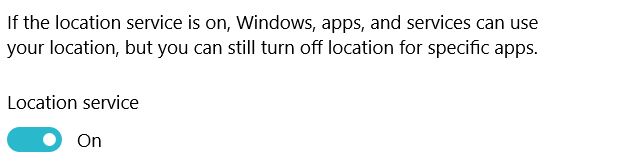
Before debug and run application you need to enable Location on all devices (iOS,Android,Windows)


Step 11: Installing google Play Services from Android Emulator:

Xamarin.Forms 2.2.0 on Android now depends on GooglePlayServices 29.0.0.1 for maps.


Visual Studio Emulator for Android does not include Google Play Services. This means that several APIs, including support for Google Maps, are not supported by default. To install Google Play Services, follow below steps

Download the Google Apps package from Team Android http://www.teamandroid.com/gapps/

Verify Device Android Version like GApps: CyanogenMod 11 / Android 4.4 KitKat and download

Drag and drop the downloaded .zip package into the running android emulator and wait for installation complete


the emulator will shut down and restart. To verify installation, check that the Play Store app ,gmail,etc is visible in the app menu

Now you can start use android emulator
Run Application

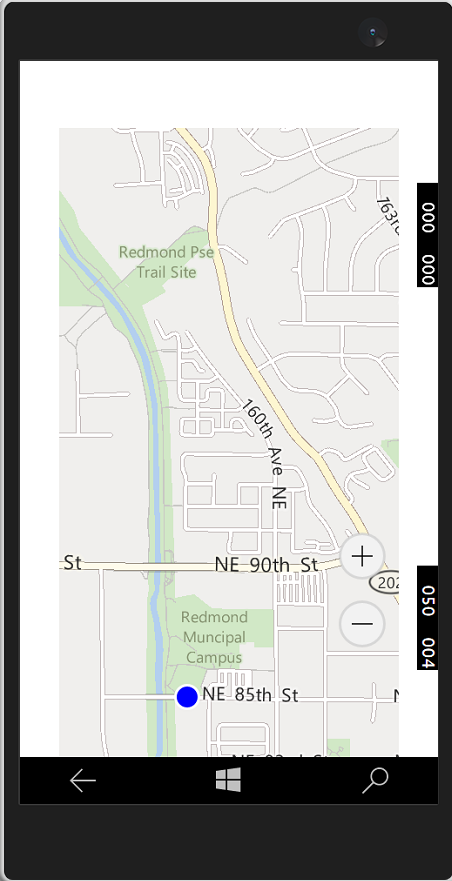
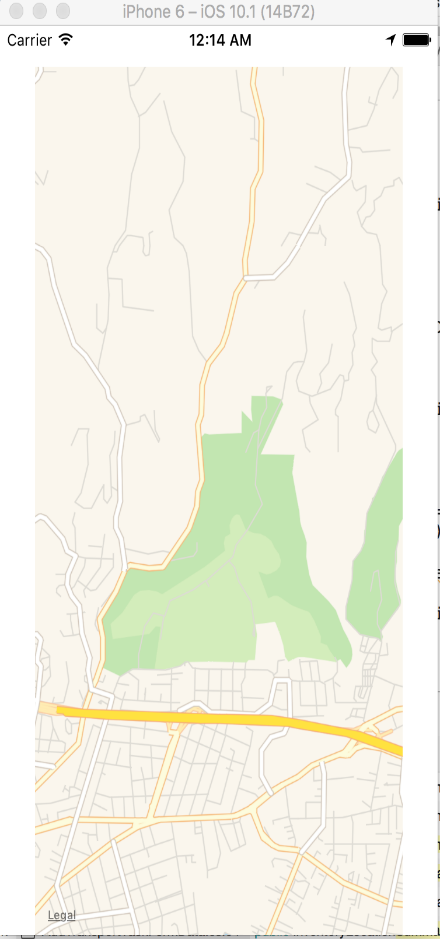
After complete all above steps, now you can start run all platform apps


Issues and Resolutions:

I have shared below some implementation, Development, issues and solution


Error:

Building in Android: Java Out of Memory Error

Solution:

Go to Android project options and set, Build/Android Build > Advanced tab > set 1G (or something) in Java heap size.

If you have any question /feedback /issue, write in the comment box

Introduction:

Android allow us to integrate google maps in our application so we need to generate an API Key using google developer account. This article shows you how to generate Google map API key from google developer account .


Setup New Xamarin Forms Project:

We need to associate package name to google API so before create API key. Let Start create new Xamarin Forms Project in Visual studio.

Open Run ➔ Type Devenev.Exe and enter ➔ New Project (Ctrl+Shift+N)➔ select Blank Xamarin.Forms Portable template


It will automatically create multiple project like Portable, Android, iOS, UWP. You can refer my previous article for more - http://www.c-sharpcorner.com/article/how-to-create-first-xamarin-form-application/

Register Google Maps Android API

I have shown below steps for register google maps for android application.

Step 1: Navigate to google developer API account https://console.developers.google.com
Step 2: if you asked to sign in, provide google user id, password and click on Sign in.
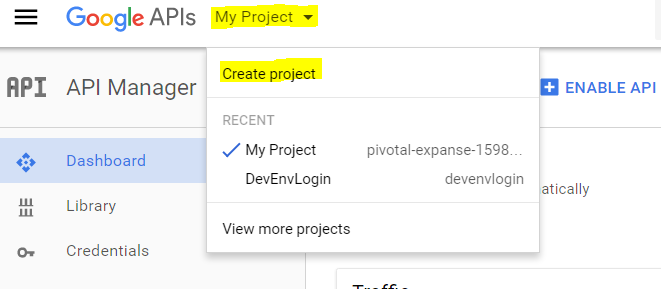
Step 3: Select My project list and select existing project or create new project.


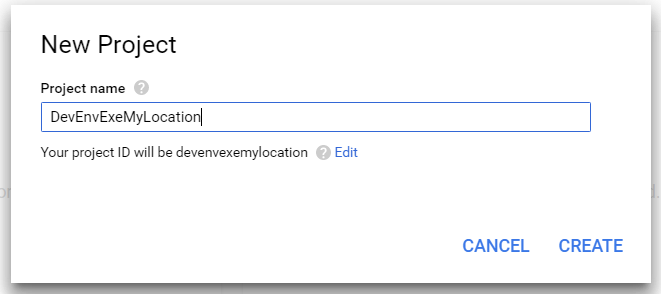
Step 4: Provide your project name and project name must be between 4 and 30 characters and click on create button.


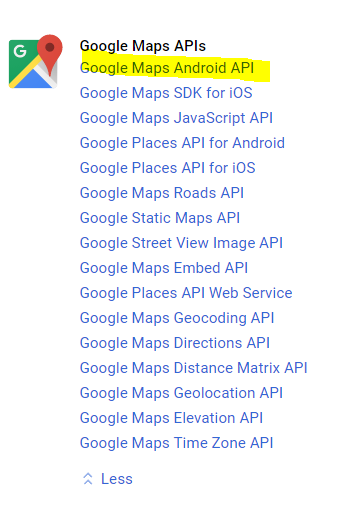
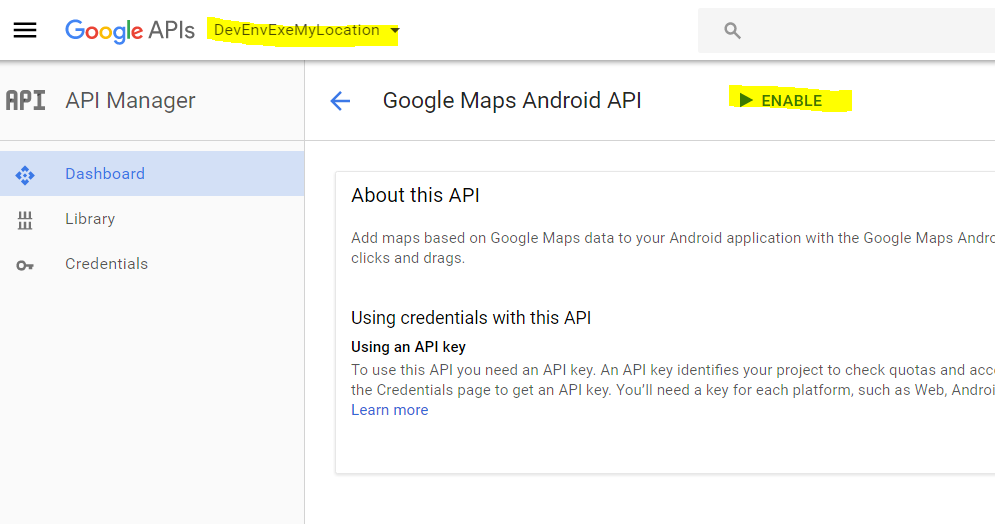
Step 5: make sure your project selected in header like step 3 and Click on Google Maps Android API


Step 6: click on Enable button for access


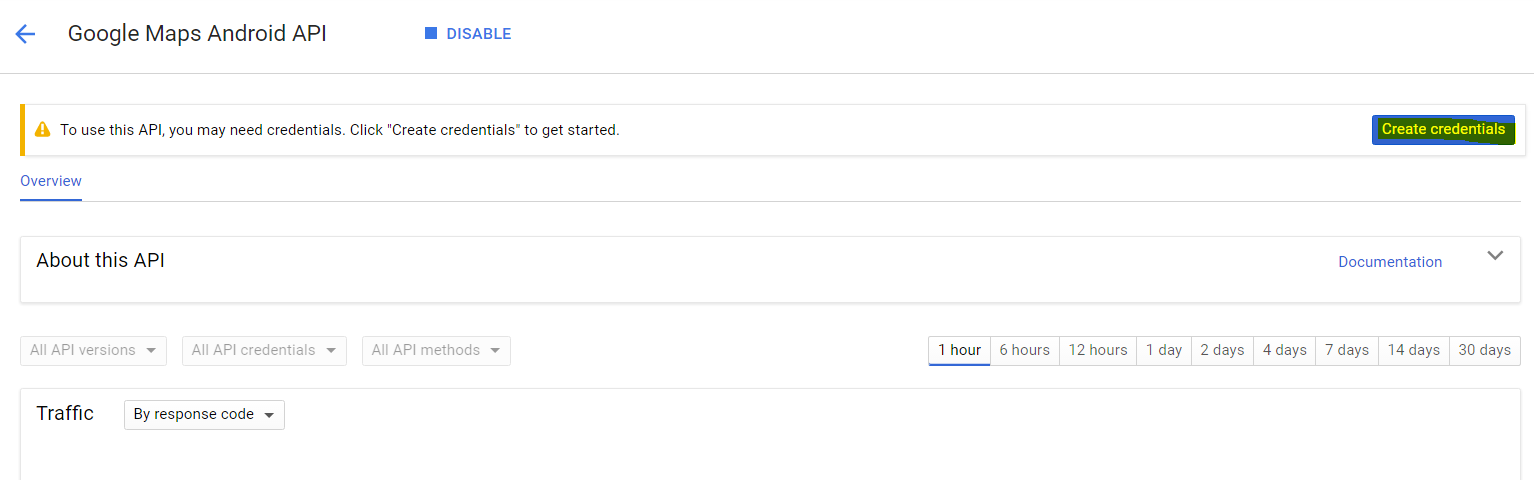
Step 7: Click on Credentials for get API key


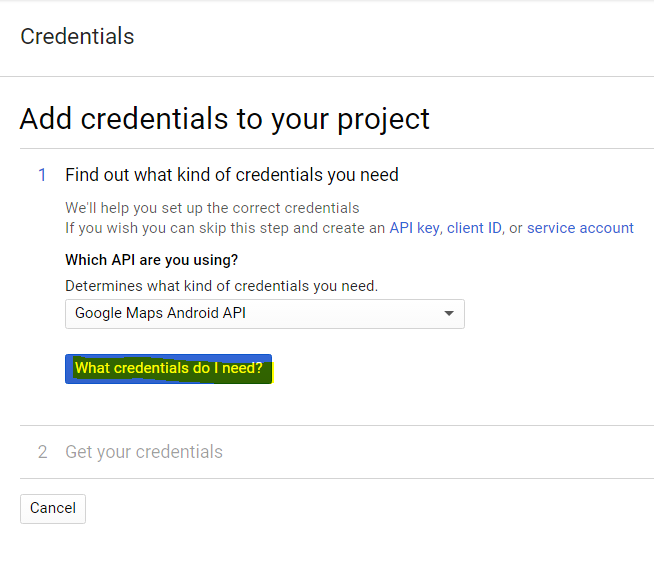
Step 8:in credentials page, click on “What Credentials do I need?”


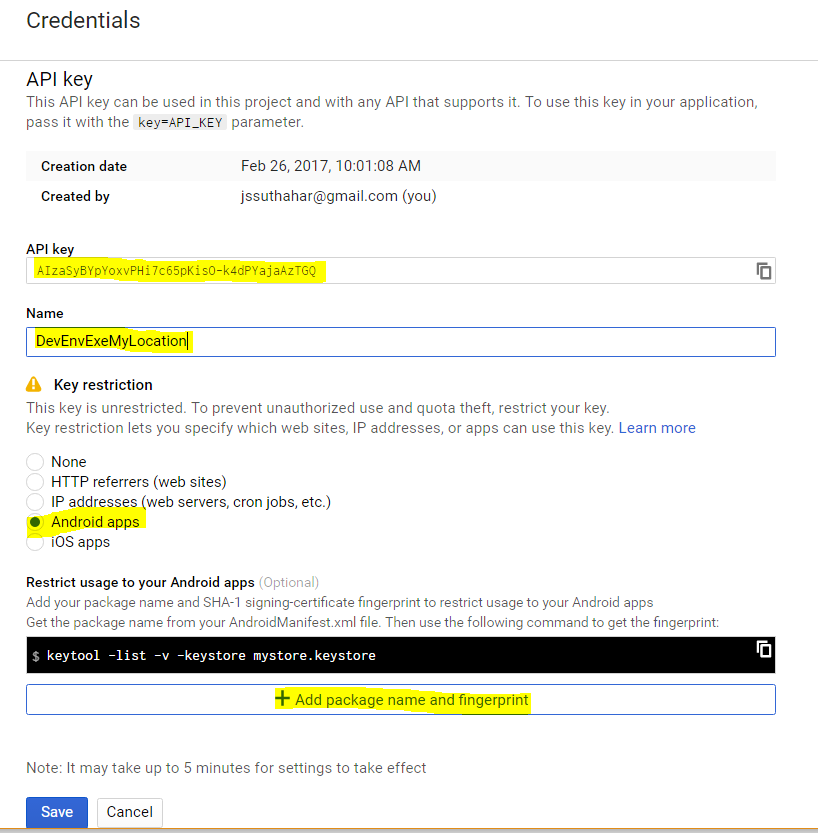
Step 9: You can get public API key or if you want to restrict limit which web sites, IP address, mobile apps can call this API Key then you can click on “Restrict Key “.


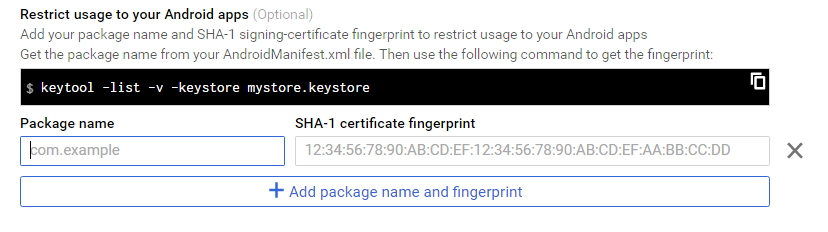
Step 10: Change API name as your application name (Demo App Name: DevenvExeMyLocation ) > Select Application type as Android App > Click on + Add Package name and fingerprint


Step 11: Add your package name and SHA-1 signing-certificate fingerprint to restrict usage to your android apps. follow below steps for get package name and SHA-1 fingerprint.


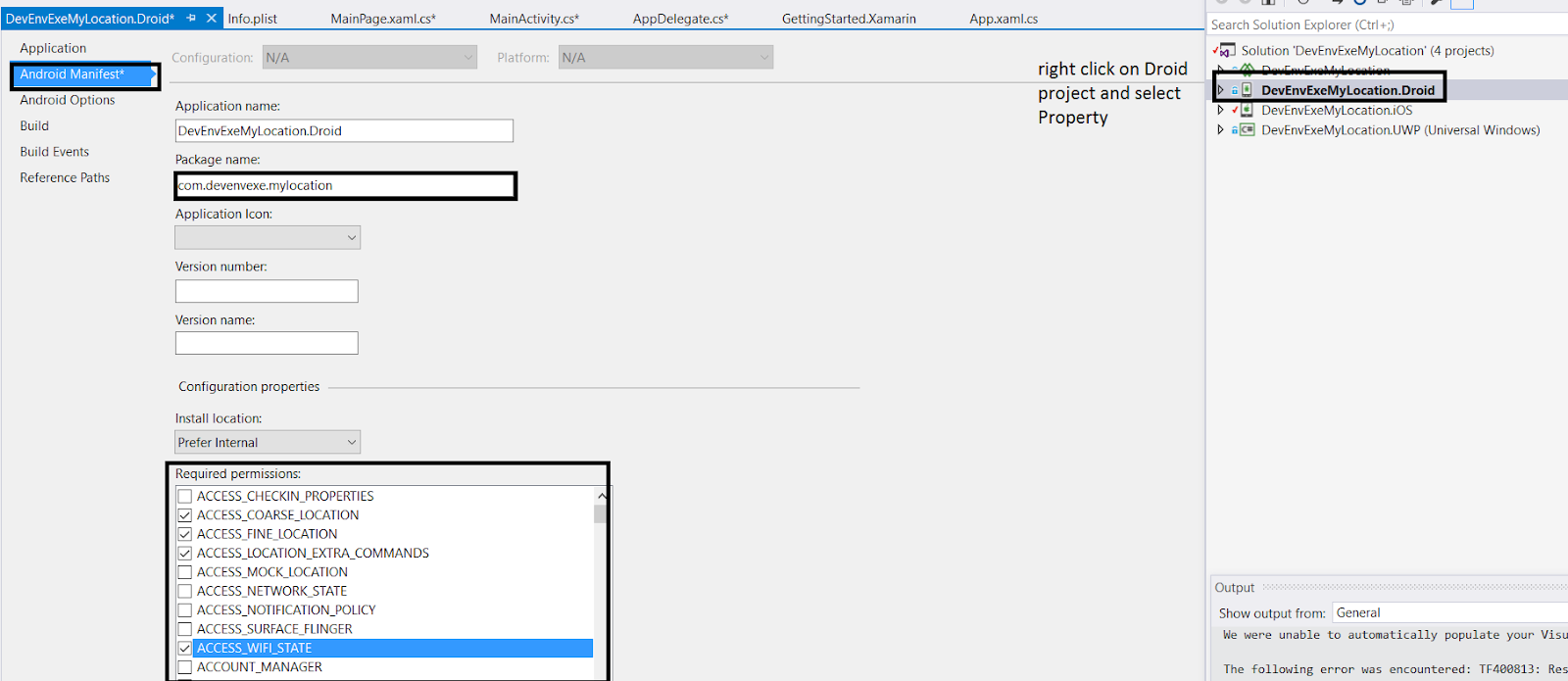
Step 12: How to get Package Name?

Go back to your xamarin Application and Select Droid project from solution explore > Right click and select as Property > Click on Android Manifest and change or add package name > select location and map permission


Step 13: How to generate SHA-1 certificate fingerprint?

The SHA1 signature of a Xamarin.Android app depends on the .keystore file that was used to sign the APK. Typically, a debug build will use a different. keystore file than a release build.

Step 13.1: Navigate to AppData Folder

Click Windows key + R ( Run ) > type %AppData% and click Ok > Goto AppData folder > Local > Xamarin >Mono for Android and note the debug.keystore file location - C:\Users\<username>\AppData\Local\Xamarin\Mono for Android

Step 13.2: Find KeyStore.exe for execution

Keystore fill will run by Keytool . key tool is free certificate tool provided by Oracle as part of the Java software. If you have Java installed on your Windows computer, you can find it using these

Goto C:\Program Files (x86)\Java > Select Java Version (jdk1.7.0_55) > Select bin folder > Find Keytool.exe file .

Step 13.3: Now you can open CMD and navigate keytool.exe folder path like below

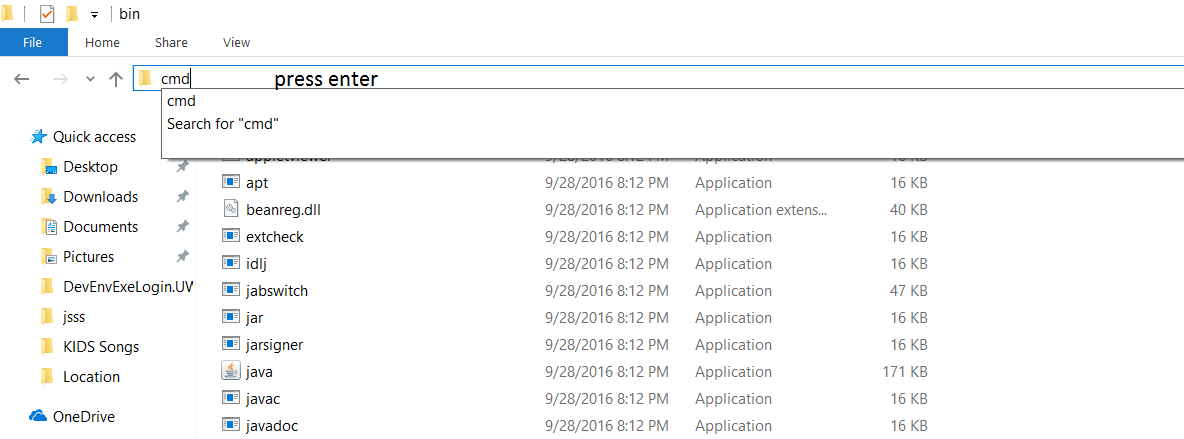
Goto C:\Program Files (x86)\Java > Select Java Version (jdk1.7.0_55) > Select bin folder > Press Alt + D or select Address > replace location path to CMD > press enter


Step 13.4: run keystore.exe from following cmd

keytool.exe -list -v -keystore "%LocalAppData%\Xamarin\Mono for Android\debug.keystore" -alias androiddebugkey -storepass android -keypass android


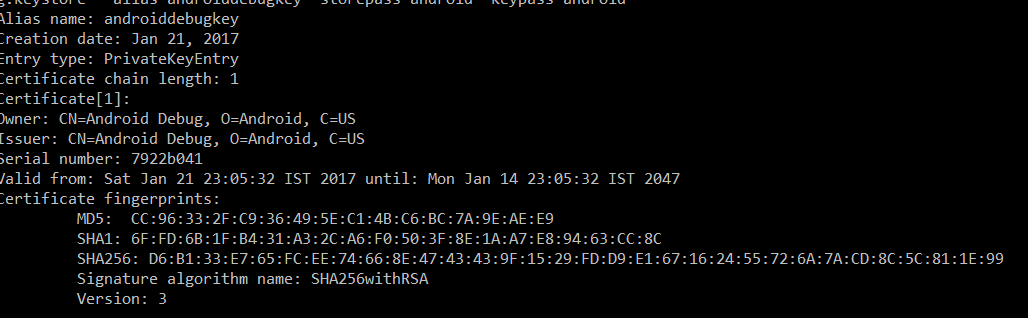
Step 13.5: The result look like below


Step 14: Now again go back to google developer website and update package name and SHA1 key > click on save


Step 15 : In Visual Studio Project ,go to your Xamarin Droid project and under property folder > open AndroidManifest.xml and added below line with your API key

<meta-data android:name="com.google.android.geo.API_KEY" android:value="API Key” />

I will share google map implementation in my next article. If you have any question or feedback, please share in the comment box.
Windows allow us to integrate Bing maps in our application so we need to generate an application key using Bing developer account. This article shows you how to generate Bing map application key from Bing developer account.

Generate Key from Bing Map Portal:

I have shown below steps for register Application key for windows based application using Bing maps developer portal.

Step 1: 

Navigate to Bing map Developer portal https://www.bingmapsportal.com/ and login using your Microsoft account


Step 2:Create new Bing map account :

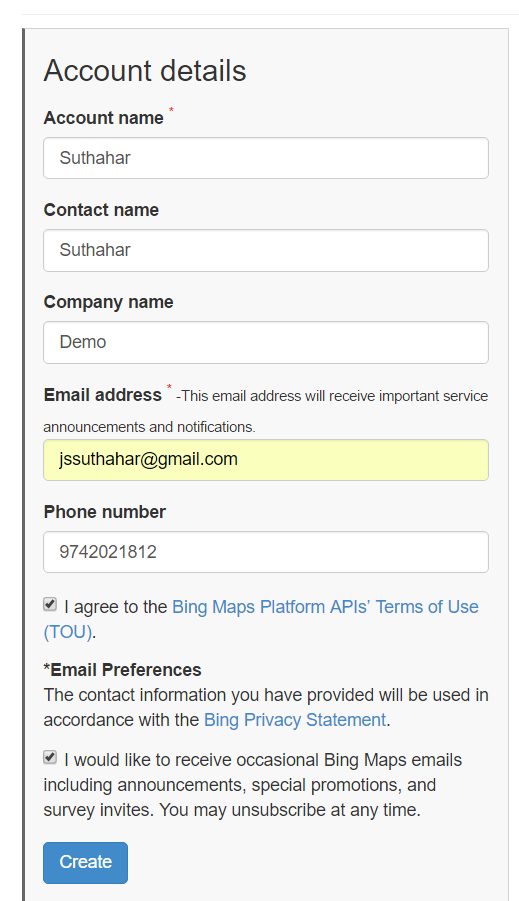
Provide the following basic profile information and accept Bing map terms and condition and click Create. If you already registered user, no need to do this step

Step 3: Generate Application Key:

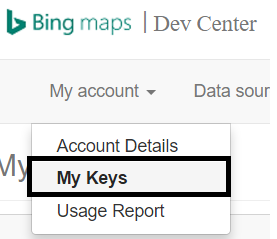
In Bing map Portal, Click on My Account and select My keys


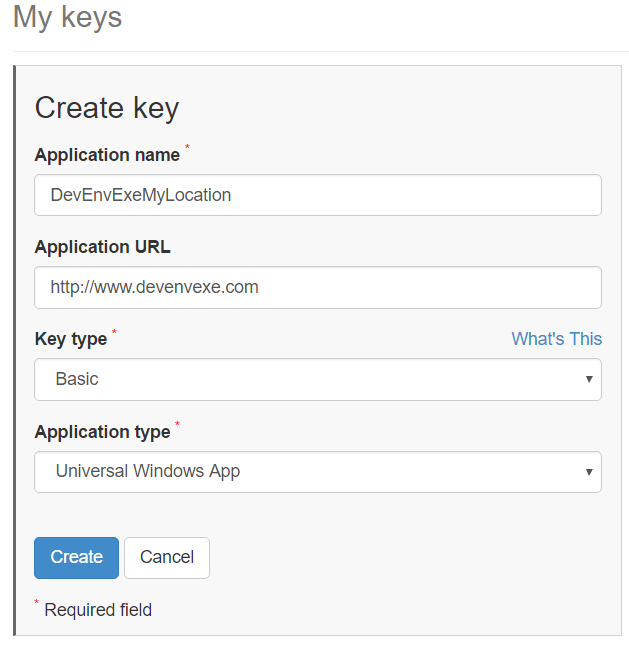
And click on create new application key and provide application name, key type(Basic/Enterprise), application type and click on create or You can chose already created Bing map application key


Step 4: Completed

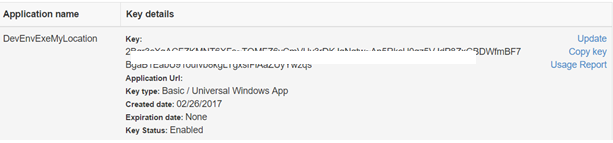
After successfully created application key, the new key appears below the My keys form. Copy it to a safe place or immediately add it to your app.


I will share bing map implementation in my next article. If you have any question or feedback, please share in the comment box.

Step 1:

Create / Register Azure Active Directory Login from Here

Step 2:

Implement Xamarin.Forms Application

After completed your Azure app register, then you can start follow below steps for create xamarin application with Login AD Authentication.

Step 1: Create New Xamarin Forms Application:

Let Start create new Xamarin Forms Project in Visual studio. Open Run ➔ Type Devenev.Exe and enter ➔ New Project (Ctrl+Shift+N)➔ select Blank Xamarin.Forms Portable template


It will automatically create multiple project like Portable, Android, iOS, UWP. First we will start edit portable project then platform specific project

Step 2: Install Microsoft ActiveDirectory nuget Package

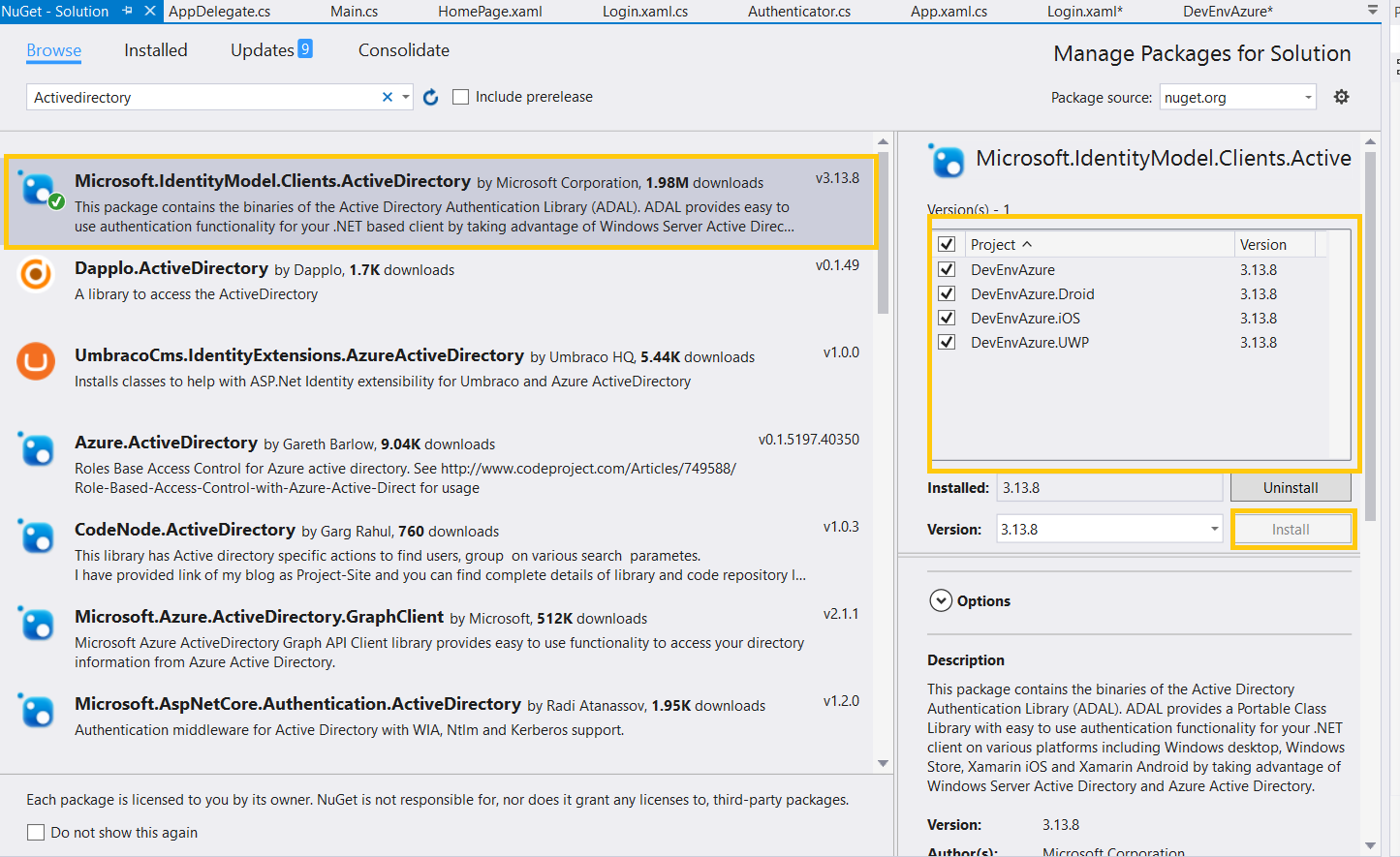
Microsoft ADAL provides a Xamarin Portable Class Library with easy to use authentication functionality for.NET client on various platforms including UWP, Xamarin iOS and Xamarin.Android .you can get more info from here ( https://www.nuget.org/packages/Microsoft.IdentityModel.Clients.ActiveDirectory/)

For implement Azure active directory login, we need to install Active Directory Authentication Library, I will show below steps for install ADAL library

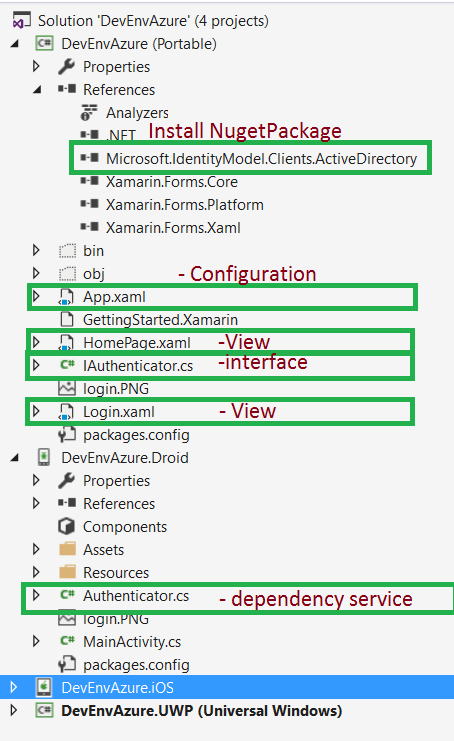
Select Solution => Right Click Manage nuget Packages for Solution => Search “Microsoft IdentityModel” => Select Microsoft.IdentityModel.Clients.ActiveDirectory => Select all Project => Click on Install

Step 3: Azure AD Configuration (App.xaml.cs)

I have added azure configuration like ApplicationID,tenantUrl,returnuri and GraphresourceUrI in APP.xaml.cs

In portable project =>open App.xaml.cs = > update all configuration

using Microsoft.IdentityModel.Clients.ActiveDirectory;
using System;
using System.Collections.Generic;
using System.Linq;
using System.Text;
using Xamarin.Forms;

namespace DevEnvAzure
{
public partial class App : Application
{
// update your Application ID or client ID
public static string ApplicationID = "----dfc6-2089-4e8c-ssss-8d3591736a96";
//modify your Azure tenant
public static string tenanturl = "https://login.microsoftonline.com/<Azure Tenant >
//Update your return url
public static string ReturnUri = "http://DevEnvAzure.microsoft.net";
//No need to change
public static string GraphResourceUri = "https://graph.microsoft.com";
public static AuthenticationResult AuthenticationResult = null;
public App()
{
InitializeComponent();
MainPage = new DevEnvAzure.Login();
}

protected override void OnStart()
{
// Handle when your app starts
}

protected override void OnSleep()
{
// Handle when your app sleeps
}

protected override void OnResume()
{
// Handle when your app resumes
}
}
}

Step 3: Create Login Page (Login.Xaml)

I have created quick and simple login screen. You can modify as per your requirement
Right Click Portable Class Library ➔ Add New Item ➔ Select Xaml Page(Login)

<?xml version="1.0" encoding="utf-8" ?>
<ContentPage xmlns="http://xamarin.com/schemas/2014/forms"
xmlns:x="http://schemas.microsoft.com/winfx/2009/xaml"
xmlns:local="clr-namespace:DevEnvAzure"
x:Class="DevEnvAzure.Login">
<StackLayout HorizontalOptions="Center" VerticalOptions="Center" Padding="10" Spacing="10">
<Button Text="" Clicked="Login_OnClicked" Image="login.png" />
</StackLayout>
</ContentPage>

Step 4: Login Click Event (Login.Xaml.cs)

Add LoginClick event in login page code behind file and if login success ,page navigate to home page

using Microsoft.IdentityModel.Clients.ActiveDirectory;
using System;
using Xamarin.Forms;

namespace DevEnvAzure
{
public partial class Login : ContentPage
{
public Login()
{
InitializeComponent();
}
private async void Login_OnClicked(object sender, EventArgs e)
{
try
{
var data = await DependencyService.Get<IAuthenticator>()
.Authenticate(App.tenanturl, App.GraphResourceUri, App.ApplicationID, App.ReturnUri);
App.AuthenticationResult = data;
NavigateTopage(data);
}
catch(Exception)
{ }
}

public async void NavigateTopage(AuthenticationResult data)
{
var userName = data.UserInfo.GivenName + " " + data.UserInfo.FamilyName;
await Navigation.PushModalAsync(new HomePage(userName));
}
}
}

Step 4: Create Home Page

I have created quick and simple home screen. You can modify as per your requirement
Right Click Portable Class Library ➔ Add New Item ➔ Select Xaml Page(Homepage)

<?xml version="1.0" encoding="utf-8" ?>
<ContentPage xmlns="http://xamarin.com/schemas/2014/forms"
xmlns:x="http://schemas.microsoft.com/winfx/2009/xaml"
x:Class="DevEnvAzure.HomePage">
<Label Text="" x:Name="lblname" VerticalOptions="Center" HorizontalOptions="Center" />
</ContentPage>

And modify code behind file like below

using Xamarin.Forms;
namespace DevEnvAzure
{
public partial class HomePage : ContentPage
{
public HomePage(string username)
{
InitializeComponent();
lblname.Text = " Welcome Mr " + username;
}
}
}

Step 5: Create Authentication Interface.

In portable project, Add a new interface for Authentication method. The authentication method will return Authentication result from ADAL , Which contains the AccessToken and user details .

Right Click on PCL project => Select Interface => name as IAuthenticator.cs => Click on Ok

using Microsoft.IdentityModel.Clients.ActiveDirectory;
using System.Threading.Tasks;

namespace DevEnvAzure
{
public interface IAuthenticator
{
Task<AuthenticationResult> Authenticate(string tenantUrl, string graphResourceUri, string ApplicationID, string returnUri);
}
}

Step 6: Implement Platform Specific Dependency Service:

We need to implement platform specific dependency services for login authentication .
The below code is Xamarin.Forms DependencyService which maps Authenticator.
[assembly: Dependency(typeof(DevEnvAzure.Droid.Authenticator))]

Android Application:

Add Authenicator clsss in xamarin Android application
Right click Android Project => Select Class=> Name as Authenticator

using Android.App;
using Microsoft.IdentityModel.Clients.ActiveDirectory;
using System;
using System.Linq;
using System.Threading.Tasks;
using Xamarin.Forms;
[assembly: Dependency(typeof(DevEnvAzure.Droid.Authenticator))]

namespace DevEnvAzure.Droid
{
class Authenticator : IAuthenticator
{
public async Task<AuthenticationResult> Authenticate(string tenantUrl, string graphResourceUri, string ApplicationID, string returnUri)
{
try
{
var authContext = new AuthenticationContext(tenantUrl);
if (authContext.TokenCache.ReadItems().Any())
authContext = new AuthenticationContext(authContext.TokenCache.ReadItems().FirstOrDefault().Authority);
var authResult = await authContext.AcquireTokenAsync(graphResourceUri, ApplicationID, new Uri(returnUri), new PlatformParameters((Activity)Forms.Context));
return authResult;
}
catch(Exception)
{
return null;
}
}
}
}

Now run your application and see the result like below


UWP Application:

Add Authenicator clsss in xamarin UWP application
Right click UWP Project => Select Class=> Name as Authenticator

using System;
using System.Collections.Generic;
using System.Linq;
using System.Text;
using System.Threading.Tasks;
using Microsoft.IdentityModel.Clients.ActiveDirectory;
using Xamarin.Forms;

[assembly: Dependency(typeof(DevEnvAzure.UWP.Authenticator))]

namespace DevEnvAzure.UWP
{
public class Authenticator : IAuthenticator
{
public async Task<AuthenticationResult> Authenticate(string tenantUrl, string graphResourceUri, string ApplicationID, string returnUri)
{
try
{
var authContext = new AuthenticationContext(tenantUrl);
if (authContext.TokenCache.ReadItems().Any())
authContext = new AuthenticationContext(authContext.TokenCache.ReadItems().First().Authority);
var authResult =
await
authContext.AcquireTokenAsync(graphResourceUri, ApplicationID, new Uri(returnUri),
new PlatformParameters(PromptBehavior.Auto, false));
return authResult;
}
catch(Exception )
{
return null;
}
}
}
}

Now run your application and see the result like below


iOS Application:

Add Authenicator clsss in xamarin iOS application
Right click iOS Project => Select Class=> Name as Authenticator

using System;
using System.Linq;
using Microsoft.IdentityModel.Clients.ActiveDirectory;
using UIKit;
using Xamarin.Forms;
using System.Threading.Tasks;

[assembly: Dependency(typeof(DevEnvAzure.iOS.Authenticator))]
namespace DevEnvAzure.iOS
{
class Authenticator : IAuthenticator
{
public async Task<AuthenticationResult> Authenticate(string tenantUrl, string graphResourceUri, string ApplicationID, string returnUri)
{
try
{
var authContext = new AuthenticationContext(tenantUrl);
if (authContext.TokenCache.ReadItems().Any())
authContext = new AuthenticationContext(authContext.TokenCache.ReadItems().FirstOrDefault().Authority);
var authResult = await authContext.AcquireTokenAsync(graphResourceUri, ApplicationID, new Uri(returnUri),
new PlatformParameters(UIApplication.SharedApplication.KeyWindow.RootViewController));
return authResult;
}
catch (Exception)
{
return null;
}
}
}
}

Now run your application and see the result like below


Issues and Solution:

I have shared below some implementation, Development, issues and solution


Error: Could not Install Package Microsoft.IdentityModel.Client.ActiveDirectory

While trying adding Nuget package for Azure Active Directory ('Microsoft.IdentityModel.Clients.ActiveDirectory 3.13.8') , it is possible you will receive an error complaining that the package does not contain any assembly references which are compatible with the targets of your PCL project. The error will be something like below.

Error:

Could not install package 'Microsoft.IdentityModel.Clients.ActiveDirectory 3.13.8'. You are trying to install this package into a project that targets '.NETPortable,Version=v4.5,Profile=Profile259', but the package does not contain any assembly references or content files that are compatible with that framework. For more information, contact the package author.

Solution:

ADAL does not support windows phone 8.1 version so we need to follow below steps for resolve above shown issue
Remove Installed all Nuget package
Removing the windows Phone 8.1 project from solution
Remove target platform from the PCL project

Step 1: Remove Installed all Nuget package

Go To solution > Right Click > Manage Nuget Packages > Click on Installed tab > uninstall all installed package like (Including Xamarin.Form etc ) .

If you are not uninstall the package and trying to change the targeted platforms by removing the target Windows Phone 8.1 you would get an error.


Step 2: Remove the Windows 8.1 project from Solution

ADAL does not support Windows Phone 8.1 so you need remove windows 8.1 project from solution . Only removing the Windows Phone 8.1. project from your solution will not resolve this issue. You still need follow next steps as well

Step 3: Remove target platform from the PCL project

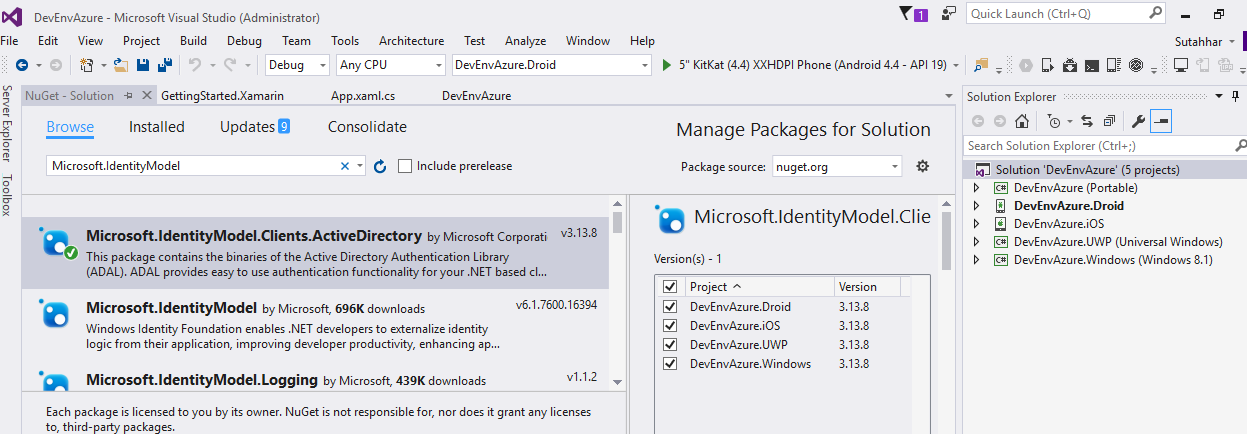
Right click on your PCL project > Click on “Properties” > Go to the tab “Library” > You can see list of targeted platforms > Press the button “Change” > uncheck the target “Windows Phone 8.1” and “ Windows Phone Silvelight 8” > Press the “OK” button

Wait a few seconds and the dialog will be gone and the target is removed from the PCL project.


Now you can able to install ADAL nuget package from your solution

Error:

Micrsoft.identityModel.Clients.ActiveDirectory.AdalServiceException:AADSTS65005:The Client application has requested access to resource ‘https://graph.microsoft.com’.the request has failed because theclient has not specific this resource in its requredResourceAccss list. If you get above error means ,try below solution


Solution:

You are missed to give Grand permission to your application so We need to give permission to access application from mobile or web so follow below steps for grand permission. Select on newly created application => Select on Required Permission => Click on Grand permission.


Related Article:

Register Identity Provider For New OAuth Application from here( http://www.c-sharpcorner.com/article/register-identity-provider-for-new-oauth-application/ )

OAuth Login Authenticating With Identity Provider In Xamarin.Forms from here( http://www.c-sharpcorner.com/article/oauth-login-authenticating-with-identity-provider-in-xamarin-forms/)

Create Azure Mobile Apps Service from here( http://www.c-sharpcorner.com/article/create-azure-mobile-apps-service/ )

Featured Post

AI Evolution Explained: GenAI vs LLMs vs AI Agents vs Agentic AI vs Intelligent AI

Artificial Intelligence (AI) is one of the most exciting technologies in our world today. But the terms that come with it like GenAI, LLMs, ...

MSDEVBUILD - English Channel

MSDEVBUILD - Tamil Channel

Popular Posts