Introduction:
Android allow us to integrate google maps in our application so we need to generate an API Key using google developer account. This article shows you how to generate Google map API key from google developer account .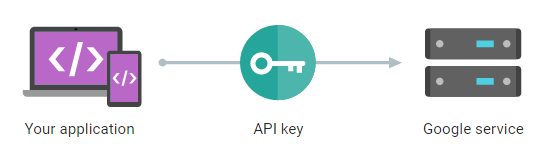
Setup New Xamarin Forms Project:
We need to associate package name to google API so before create API key. Let Start create new Xamarin Forms Project in Visual studio.Open Run ➔ Type Devenev.Exe and enter ➔ New Project (Ctrl+Shift+N)➔ select Blank Xamarin.Forms Portable template
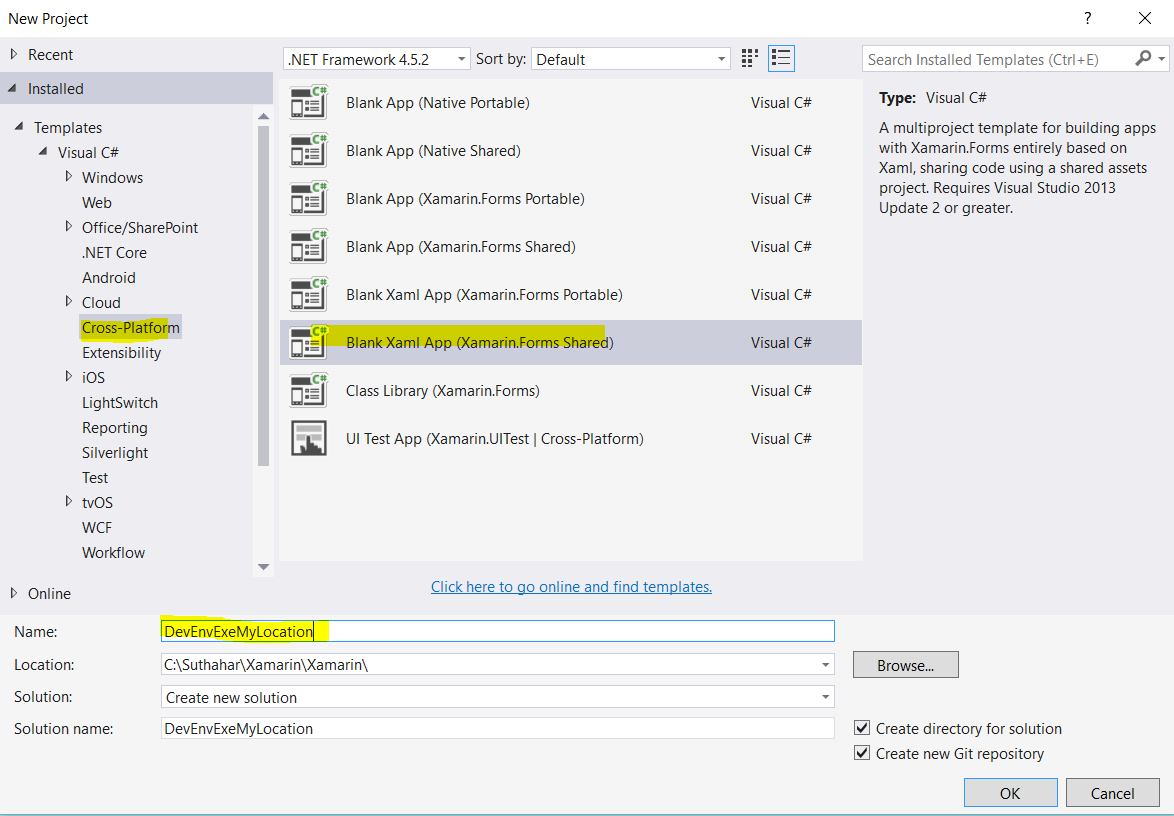
It will automatically create multiple project like Portable, Android, iOS, UWP. You can refer my previous article for more - http://www.c-sharpcorner.com/article/how-to-create-first-xamarin-form-application/
Register Google Maps Android API
I have shown below steps for register google maps for android application.
Step 1: Navigate to google developer API account https://console.developers.google.com
Step 2: if you asked to sign in, provide google user id, password and click on Sign in.
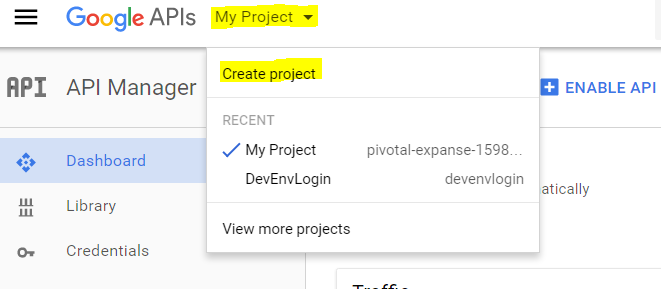
Step 3: Select My project list and select existing project or create new project.
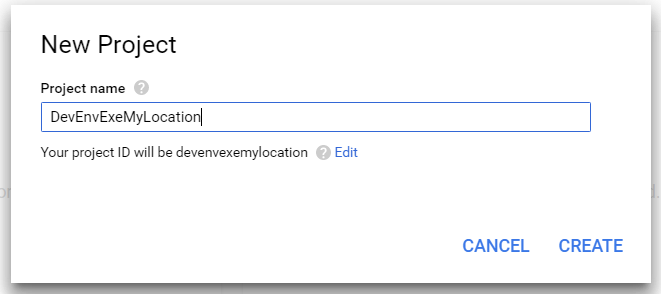
Step 4: Provide your project name and project name must be between 4 and 30 characters and click on create button.
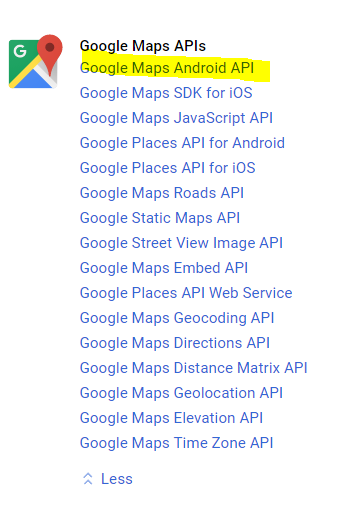
Step 5: make sure your project selected in header like step 3 and Click on Google Maps Android API
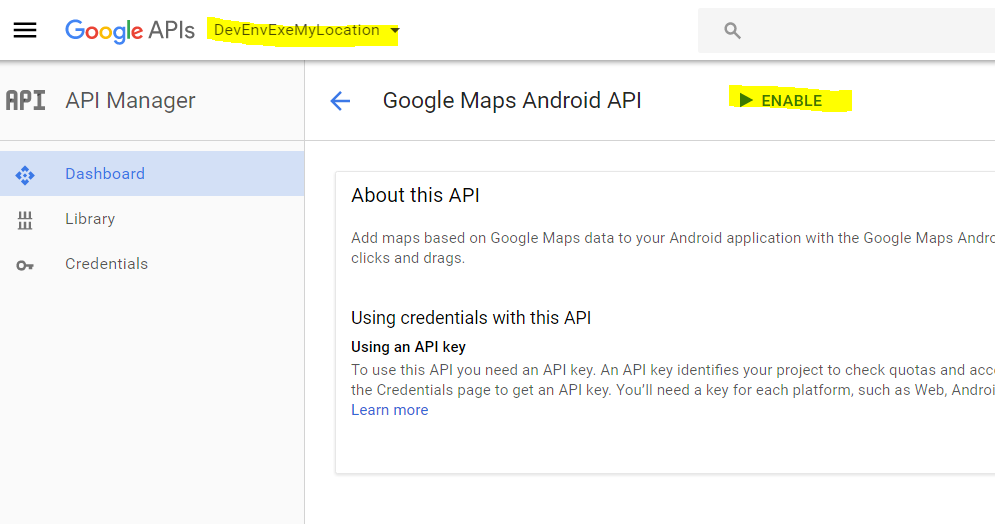
Step 6: click on Enable button for access
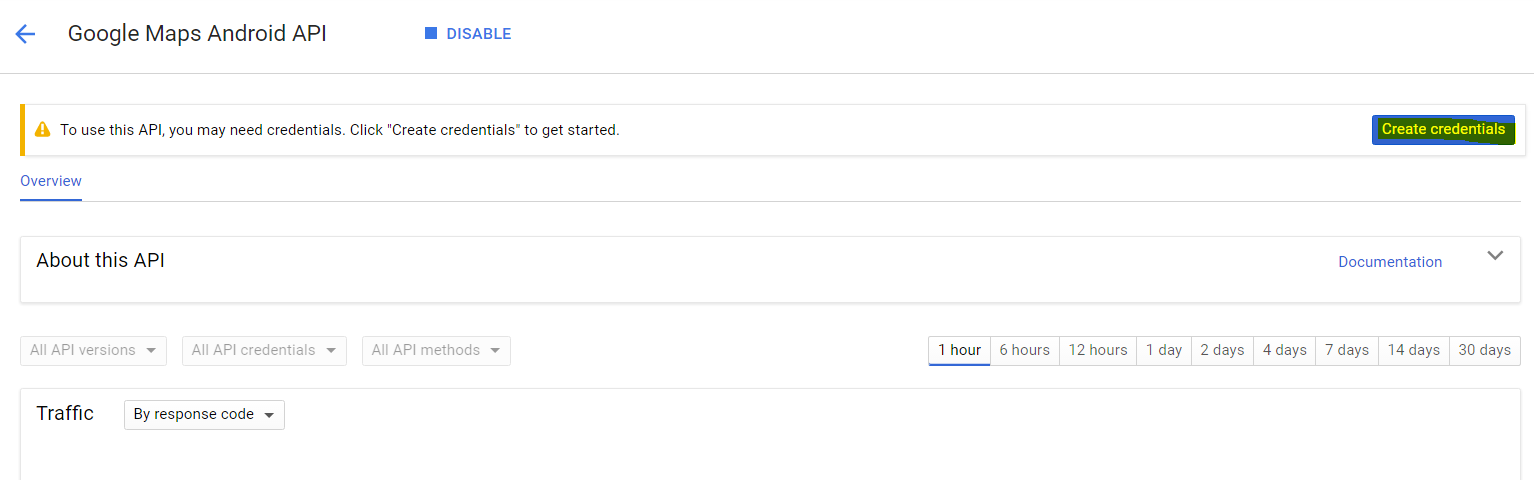
Step 7: Click on Credentials for get API key
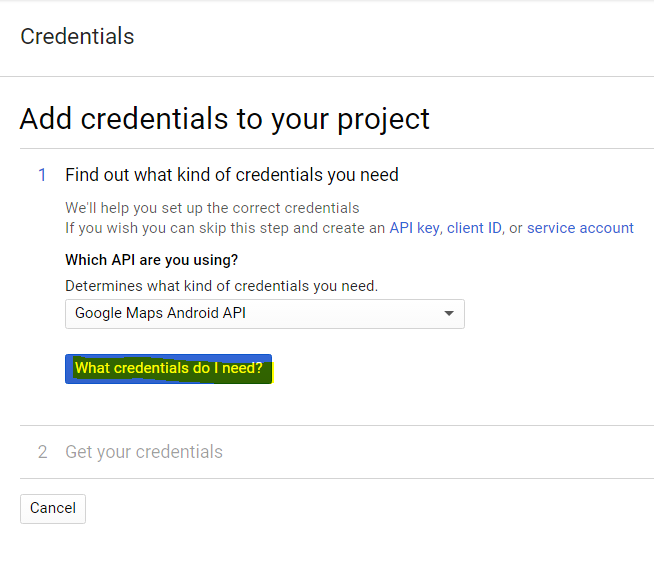
Step 8:in credentials page, click on “What Credentials do I need?”
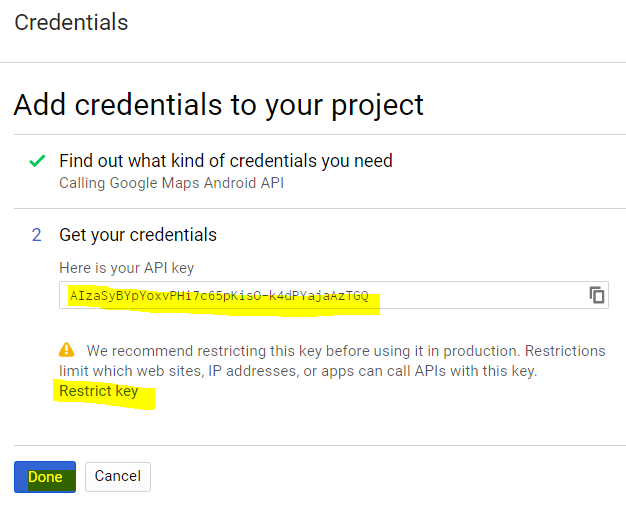
Step 9: You can get public API key or if you want to restrict limit which web sites, IP address, mobile apps can call this API Key then you can click on “Restrict Key “.
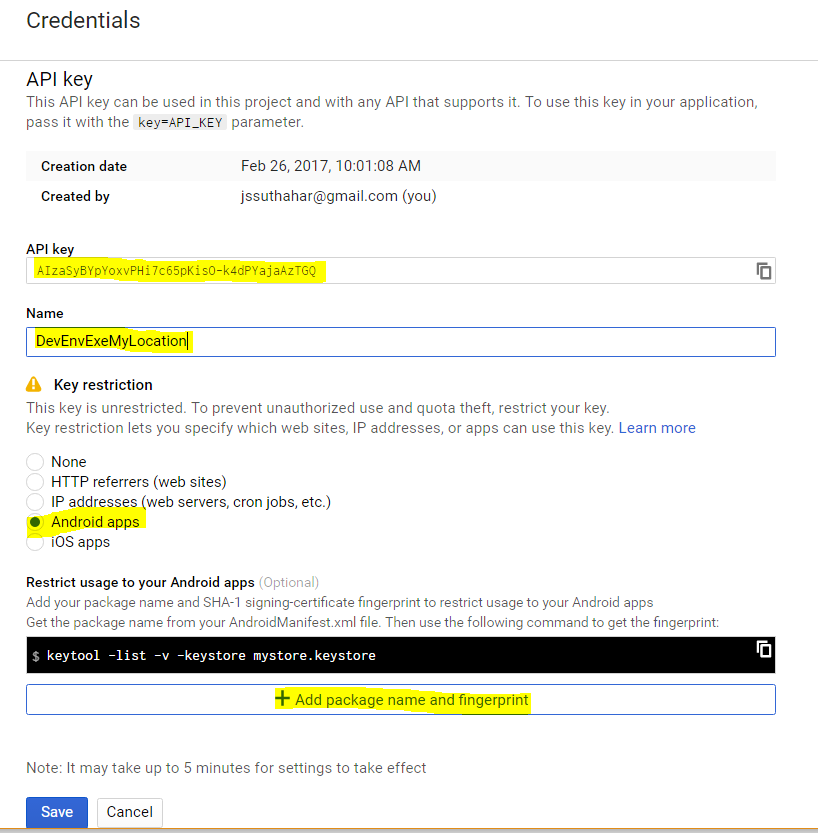
Step 10: Change API name as your application name (Demo App Name: DevenvExeMyLocation ) > Select Application type as Android App > Click on + Add Package name and fingerprint
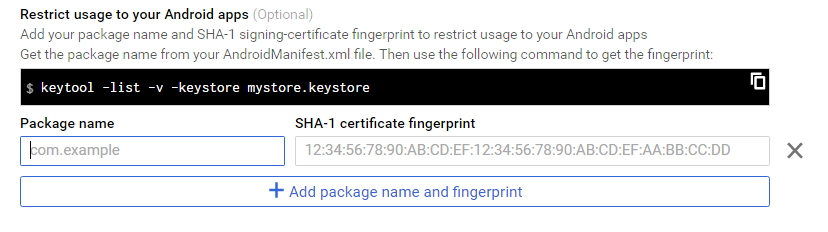
Step 11: Add your package name and SHA-1 signing-certificate fingerprint to restrict usage to your android apps. follow below steps for get package name and SHA-1 fingerprint.
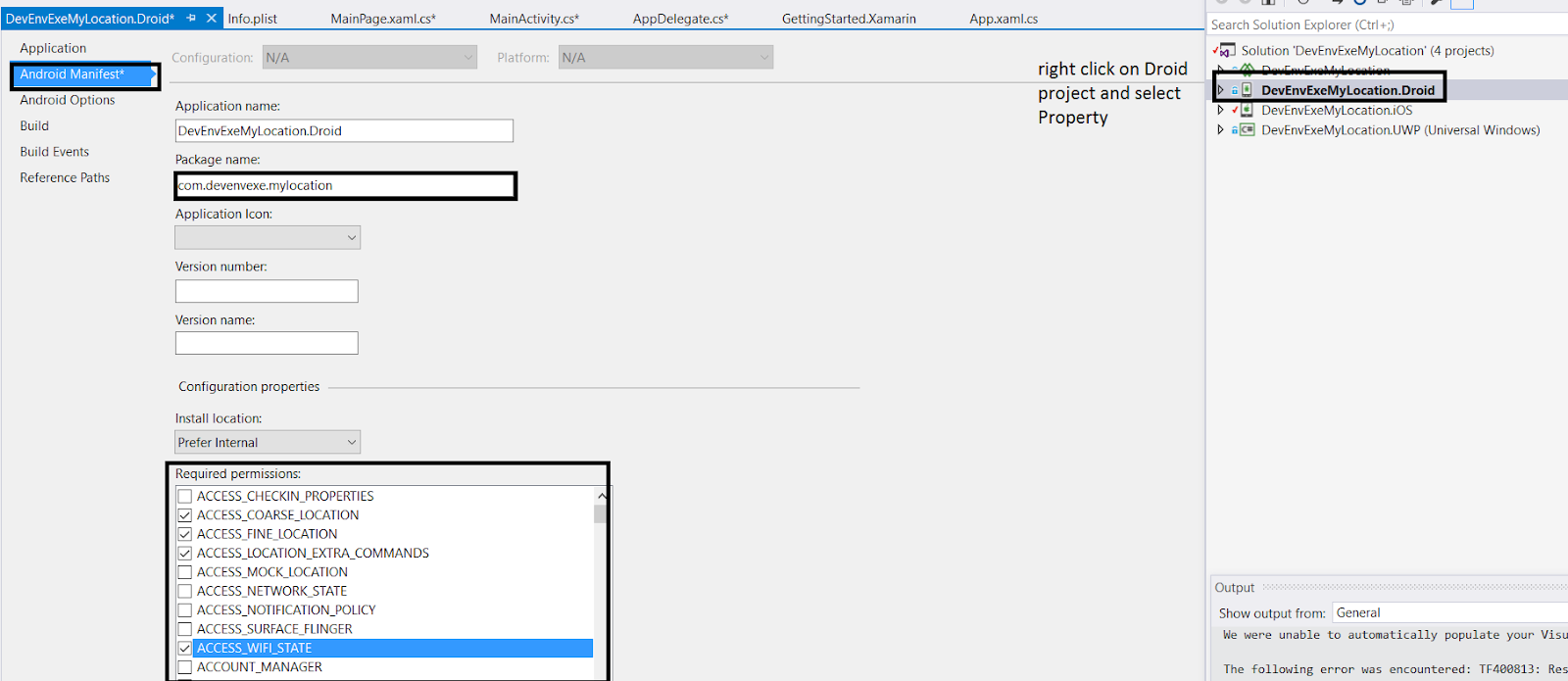
Step 12: How to get Package Name?
Go back to your xamarin Application and Select Droid project from solution explore > Right click and select as Property > Click on Android Manifest and change or add package name > select location and map permission
Step 13: How to generate SHA-1 certificate fingerprint?
The SHA1 signature of a Xamarin.Android app depends on the .keystore file that was used to sign the APK. Typically, a debug build will use a different. keystore file than a release build.
Step 13.1: Navigate to AppData Folder
Click Windows key + R ( Run ) > type %AppData% and click Ok > Goto AppData folder > Local > Xamarin >Mono for Android and note the debug.keystore file location - C:\Users\<username>\AppData\Local\Xamarin\Mono for Android
Step 13.2: Find KeyStore.exe for execution
Keystore fill will run by Keytool . key tool is free certificate tool provided by Oracle as part of the Java software. If you have Java installed on your Windows computer, you can find it using these
Goto C:\Program Files (x86)\Java > Select Java Version (jdk1.7.0_55) > Select bin folder > Find Keytool.exe file .
Step 13.3: Now you can open CMD and navigate keytool.exe folder path like below
Goto C:\Program Files (x86)\Java > Select Java Version (jdk1.7.0_55) > Select bin folder > Press Alt + D or select Address > replace location path to CMD > press enter
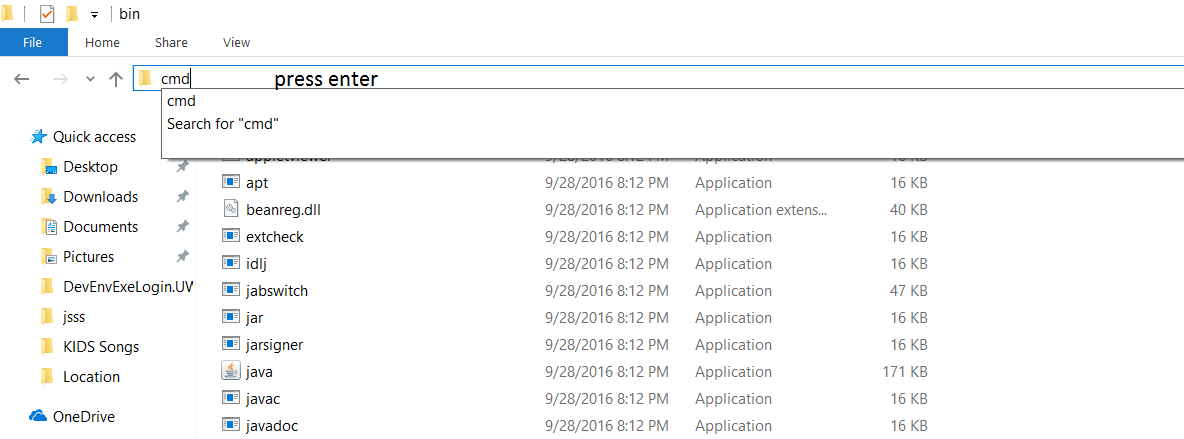
Step 13.4: run keystore.exe from following cmd
keytool.exe -list -v -keystore "%LocalAppData%\Xamarin\Mono for Android\debug.keystore" -alias androiddebugkey -storepass android -keypass android

Step 13.5: The result look like below
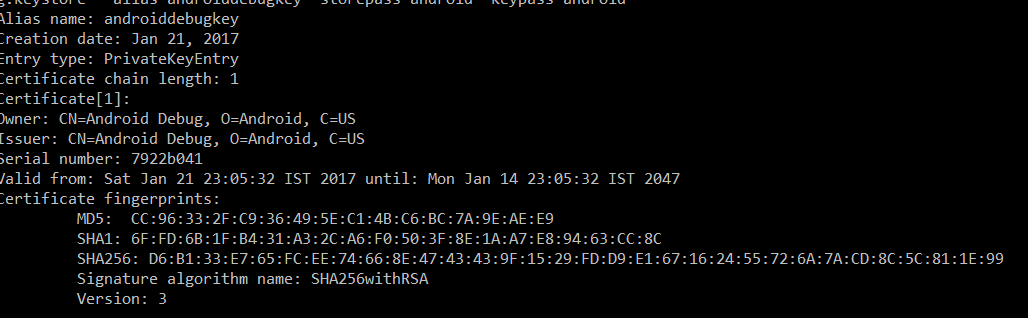
Step 14: Now again go back to google developer website and update package name and SHA1 key > click on save

Step 15 : In Visual Studio Project ,go to your Xamarin Droid project and under property folder > open AndroidManifest.xml and added below line with your API key
<meta-data android:name="com.google.android.geo.API_KEY" android:value="API Key” />
I will share google map implementation in my next article. If you have any question or feedback, please share in the comment box.
Thank you for sharing this amazing content. It is helpful for those people who wants to know more about Top Xamarin Mobile App Development Company
ReplyDeleteThanks for sharing on Google API keys. This topic is important is Android Development Course
ReplyDeleteNice blog..i was really impressed by seeing this blog, it was very interesting and it is very useful for me.also the information which you have mentioned here is correct and impressive. Really appreciate.
ReplyDeleteHire Xamarin Developer
Xamarin Development Company