The Bing Autosuggest API returns a list of suggested queries based on the user enters in the search box. Display the suggestions in the search box's drop-down list. The suggested terms are based on suggested queries that other users have searched on and user intent.

In this article, I will show how to generate Bing Search subscription key and integrate into the Xamarin application
subscription key for implement to the application .
Step 1: Sign in to Azure portal .
Step 2: Create On “+ Create a resource “> Under Azure Marketplace, select AI + Cognitive Services and discover the list of available APIs. > Select “ Bing Search v7 APIs”

Step 3: on the create page, Provide the name, pricing, resource group a click on Create

Step 4: wait forfew seconds , After the Cognitive Services account is successfully deployed, click the notification or tile in the dashboard to view the account information. You can copy the Endpoint URL in the Overview section and keys in the Keys section to start making API calls in our Xamarin applications.

Create Xamarin Application with Bing AutoSuggest
Let's start with creating a new Xamarin Forms Project using Visual Studio. Open Run - Type “Devenev. Exe” and enter - New Project (Ctrl+Shift+N) - select Blank Xaml App (Xamarin. Forms) template.
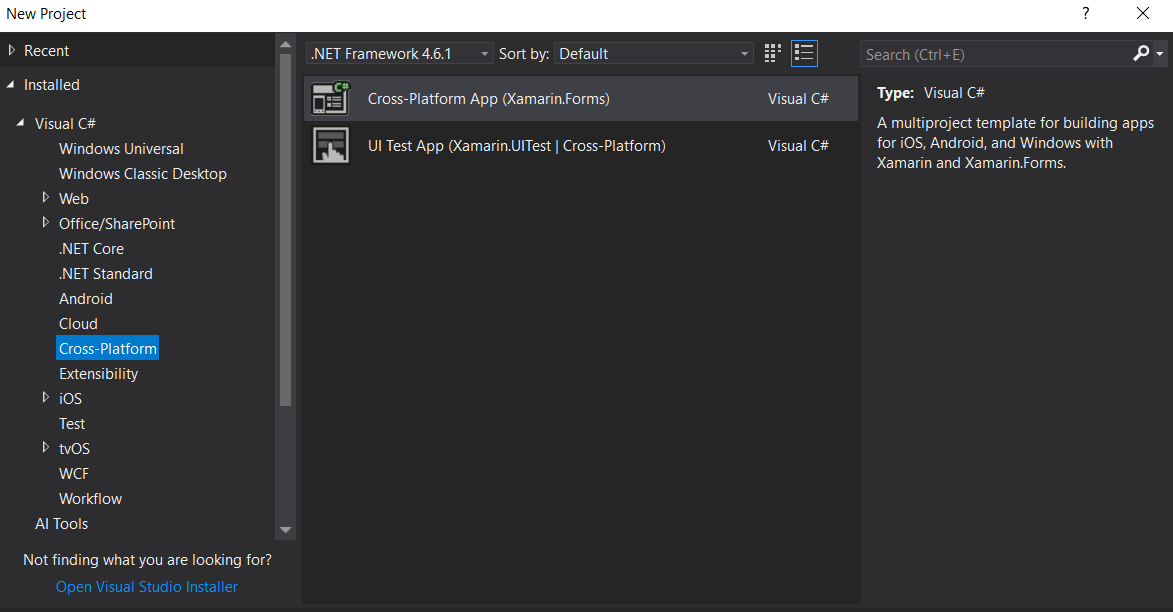
It will automatically create multiple projects, like .NET Standard, Android, iOS, and UWP.
Install Newtonsoft
Bing Autosuggest will return Json object value so make sure you have added the Newtonsoft JSON NuGet Package to your all project. Right Click on Solution > Manage Nuget Package > Install Newtonsoft Json

Install Microsoft
Th is steps is optional, if you get Error "Microsoft. CSharp. RuntimeBinder. Binder. Convert" not found by the compiler for dynamic type so adding a reference as Microsoft. CSharp to the project , this issue will get resolve .

nuget package. Let start design UI design from Dot Standard /PCL project. In PCL Project > Open MainPage . Xaml page and add design Entry and list view control in Xaml
<? xml version="1.0" encoding="utf-8" ? >
<ContentPage xmlns="http://xamarin.com/schemas/2014/forms"
xmlns:x="http://schemas.microsoft.com/winfx/2009/xaml"
xmlns : local="clr-namespace: XamarinBingAutoSuggest"
: Class="XamarinBingAutoSuggest. MainPage ">
<StackLayout >
<Entry x: Name="entrysearch " Placeholder="Type Your text" TextChanged="OnTextChangesEvent" />
<ListView x:Name="lstautosug" BackgroundColor="Azure" SelectedItem="{Binding Source={x:Reference entrysearch},
Path=Text}"></ListView>
</StackLayout >
</ContentPage >
MainPage . xaml . cs file from PCL project > replace your subscription key and End url
private string AutoSuggestionEndPoint = "https://api.cognitive.microsoft.com/bing/v7.0/suggestions";
public HttpClient AutoSuggestionClient
{
get ;
set ;
}
public MainPage( )
{
InitializeComponent( );
AutoSuggestionClient = new HttpClient( );
AutoSuggestionClient . DefaultRequestHeaders. Add( "Ocp-Apim-Subscription-Key", "<Key>");
}
HttpClient class provides a base class for get /Post the HTTP requests/responses from a URL. It is a supported async feature of .NET framework . HttpClient is able to process multiple concurrent requests. The following code showing get all Json data using Bing suggestions API url and Parse the json and binding into the list view for autocomplete
private async void OnTextChangesEvent( object sender, TextChangedEventArgs e)
{
try
{
if ( entrysearch ! =null)
lstautosug . ItemsSource = await GetAutoSuggestResults( this. entrysearch . Text);
}
catch (HttpRequestException)
{
}
}
public async Task<List<string>> GetAutoSuggestResults( string query)
{
List<string> suggestions = new List<string>();
string market = "en-US";
var result = await AutoSuggestionClient. GetAsync( string. Format( "{0} /? q={ 1} &mkt={ 2}", AutoSuggestionEndPoint, WebUtility. UrlEncode( query), market));
result . EnsureSuccessStatusCode( );
var json = await result . Content. ReadAsStringAsync( );
dynamic data = JObject . Parse( json );
if (data. suggestionGroups ! = null && data. suggestionGroups . Count > 0 && data. suggestionGroups [ 0]. searchSuggestions ! = null)
{
for (int i = 0; i < data. suggestionGroups [ 0]. searchSuggestions . Count; i++)
{
suggestions . Add( data. suggestionGroups [ 0]. searchSuggestions [ i ]. displayText . Value);
}
}
return suggestions;
}
run the application so you can select the platform iOS, Android , Windows and Click on Run (f5) the application .

You can find the source code at C# Corner attachment and Github XamarinBingAutoSuggest repository as Microsoft-Cognitive-Service. MSDN Source Code
. If you have any questions/ feedback/ issues, please write in the comment box.
In this article, I will show how to generate Bing Search subscription key and integrate into the Xamarin application
Register Bing Search in Azure Portal
You need to create an Azure account and generateStep 1: Sign in to Azure portal
Step 2: Create On “+ Create a resource “> Under Azure Marketplace, select AI + Cognitive Services and discover the list of available APIs. > Select “ Bing Search v7 APIs”
Step 3: on the create page, Provide the name, pricing, resource group a click on Create
Step 4: wait for
Create Xamarin Application with Bing AutoSuggest
Let's start with creating a new Xamarin Forms Project using Visual Studio. Open Run - Type “DevenevIt will automatically create multiple projects, like .NET Standard, Android, iOS, and UWP.
Install Newtonsoft. Json
Bing Autosuggest will return Json object value so make sure you have added the Newtonsoft JSON NuGet Package to your all project. Right Click on Solution > Manage Nuget Package > Install Newtonsoft Json
Install Microsoft. Csharp
Design View
After successfully install above two<
<
xmlns:x="http://schemas.microsoft.com/winfx/2009/xaml"
<
<Entry x
<ListView x:Name="lstautosug" BackgroundColor="Azure" SelectedItem="{Binding Source={x:Reference entrysearch},
Path=Text}"></ListView>
</
</
Configure the project
Open the{
}
{
InitializeComponent
}
Get and Parse Json Data
{
{
}
{
}
}
{
List<string> suggestions = new List<string>();
{
{
}
}
}
Run the Application
We have completed the coding now startYou can find the source code at C# Corner attachment and Github XamarinBingAutoSuggest repository as Microsoft-Cognitive-Service
This comment has been removed by the author.
ReplyDelete